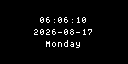
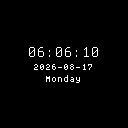
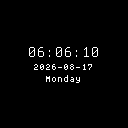
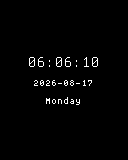
Clock
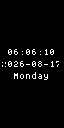
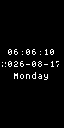
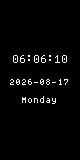
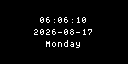
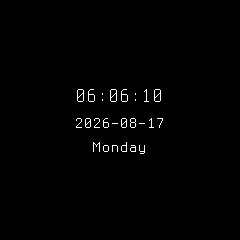
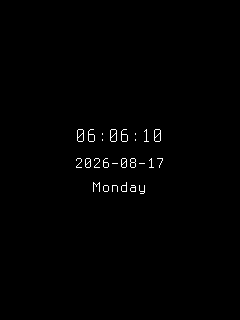
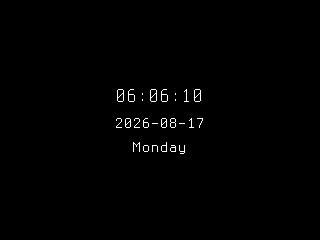
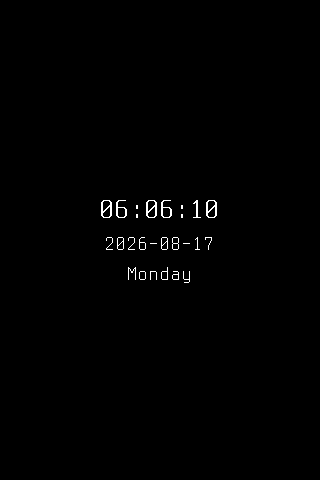
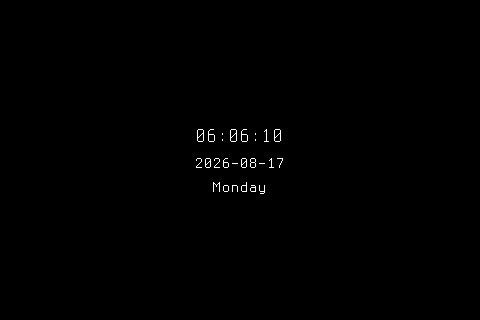
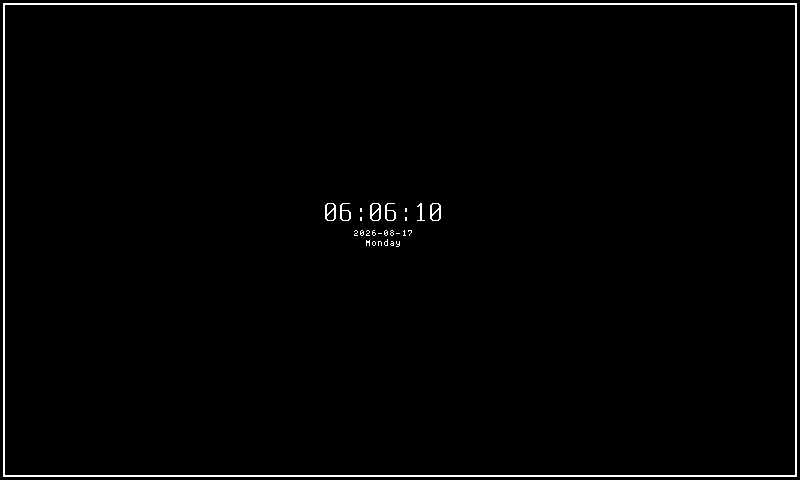
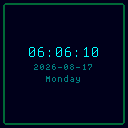
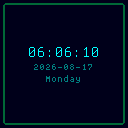
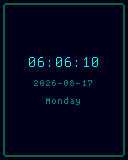
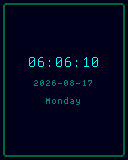
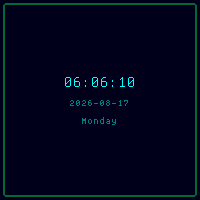
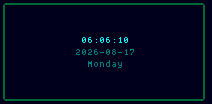
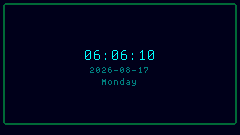
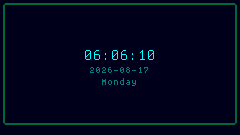
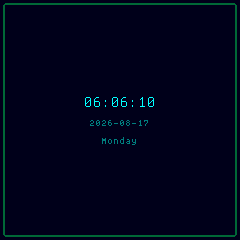
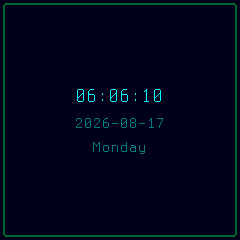
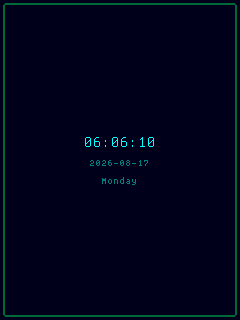
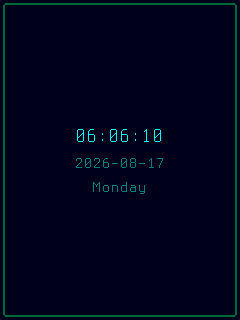
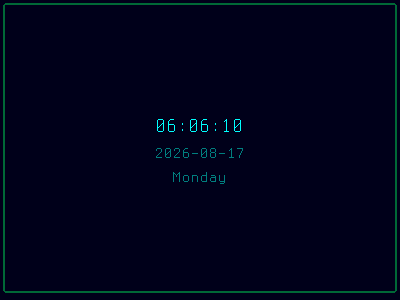
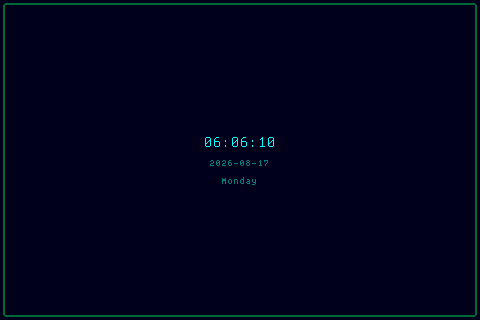
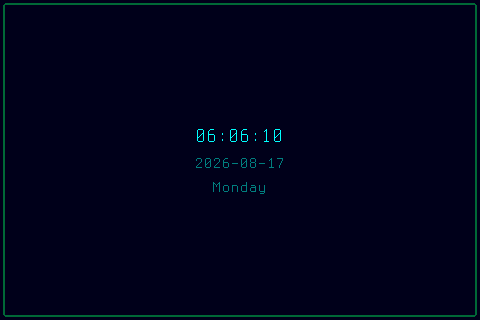
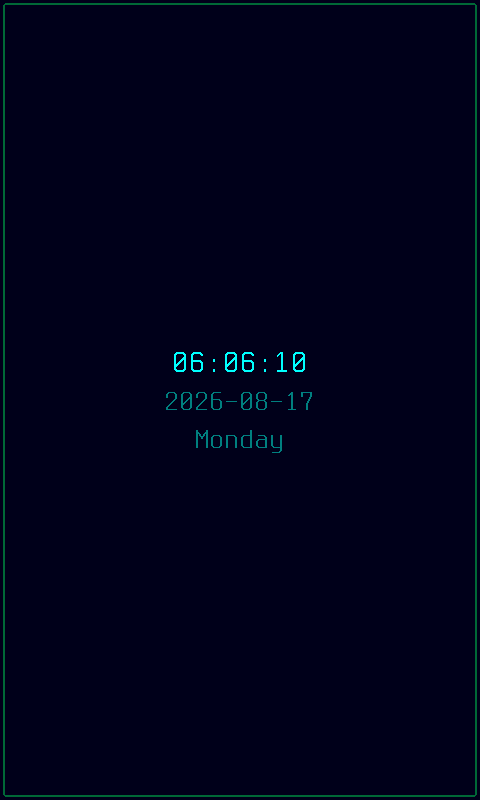
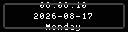
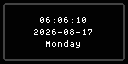
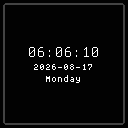
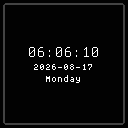
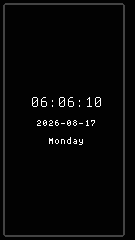
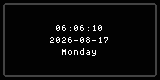
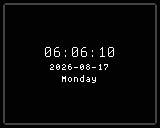
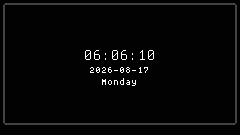
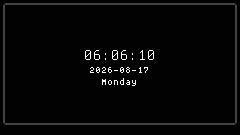
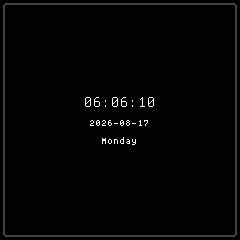
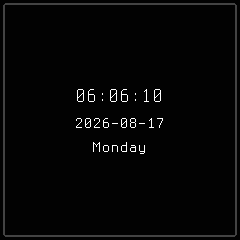
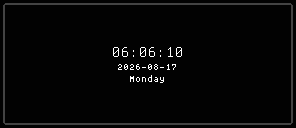
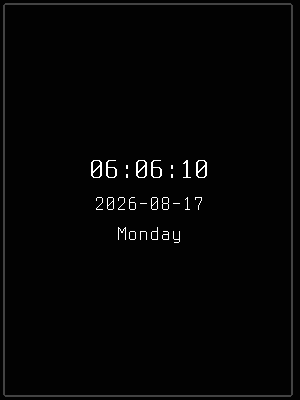
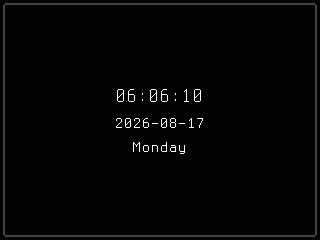
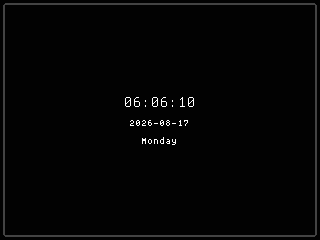
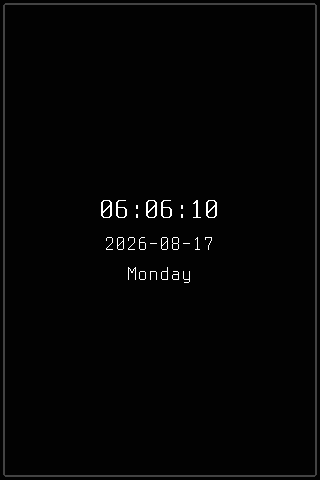
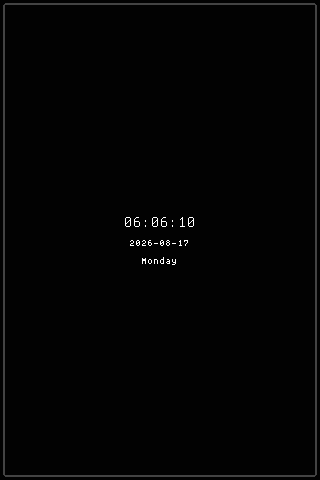
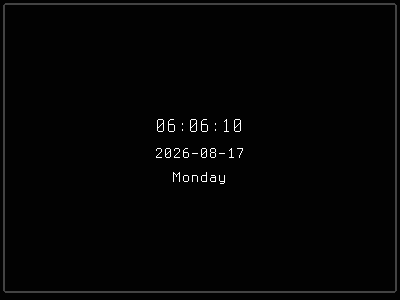
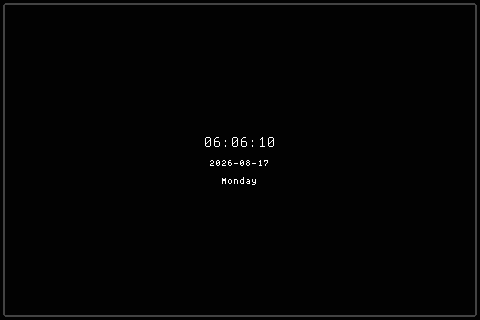
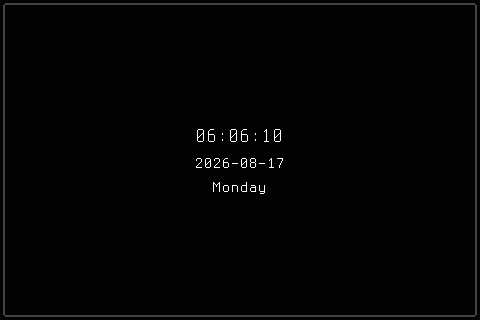
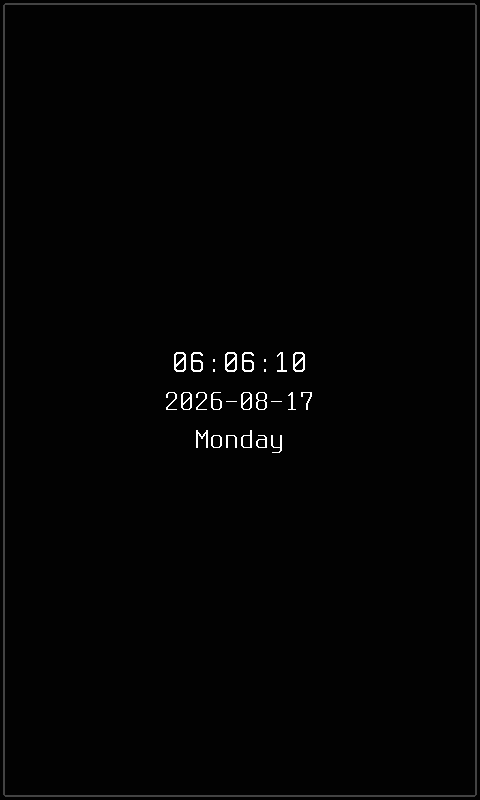
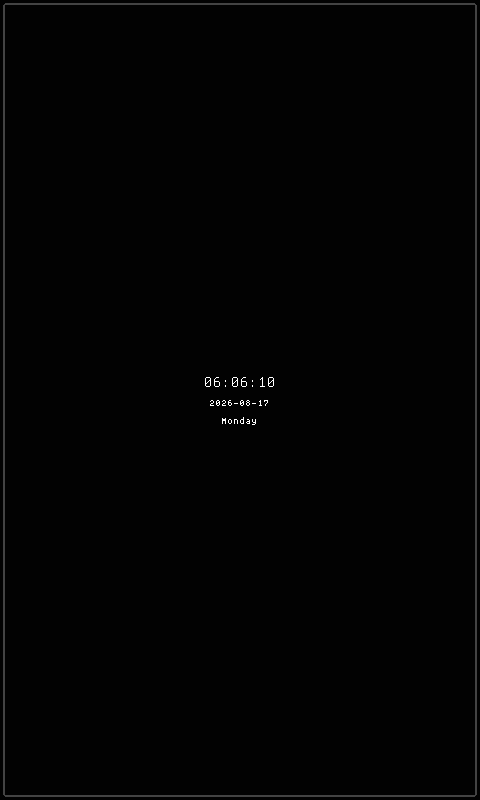
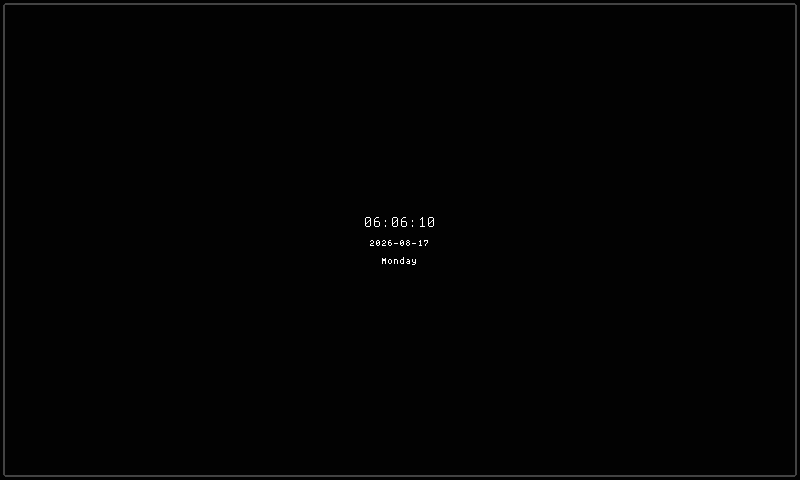
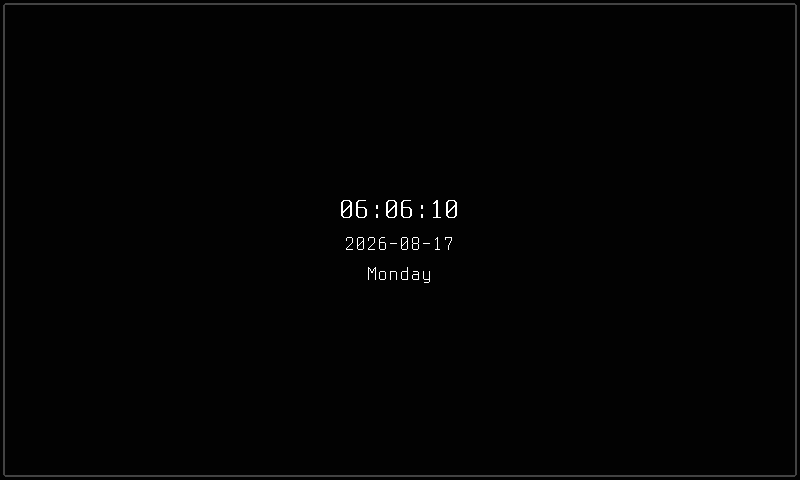
The clock mode displays the current time, date, and weekday, rendering a live-updating clock face with configurable format, timezone, and visual style. It provides a clear, at-a-glance time readout suitable for any panel, with multiple visual styles and layout options.
Quick Start
How It Works
The clock mode reads the system time (or a configured timezone) and renders a formatted time display on the panel surface. The display updates every second (when seconds or blink-colon are enabled) or every minute (when both are disabled), keeping the clock face current without unnecessary redraws.
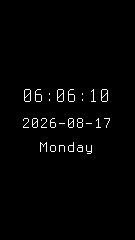
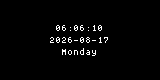
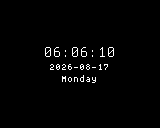
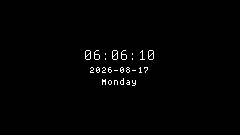
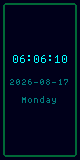
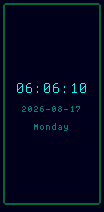
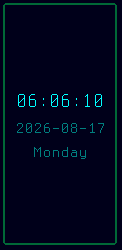
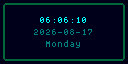
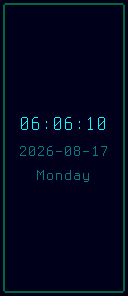
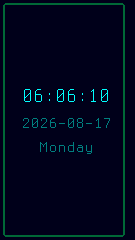
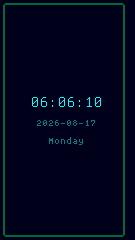
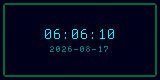
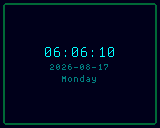
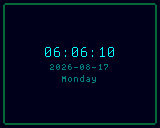
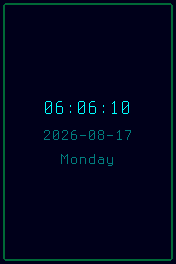
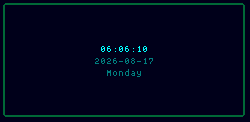
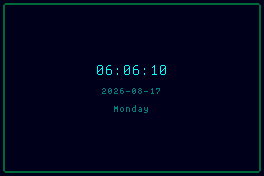
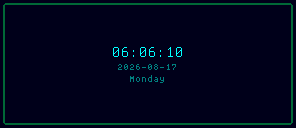
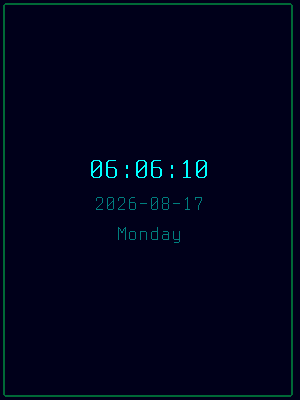
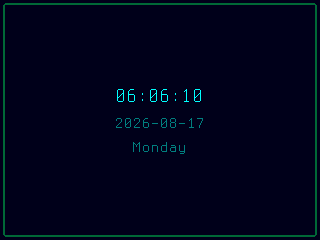
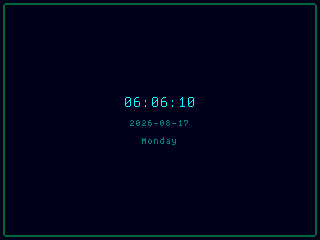
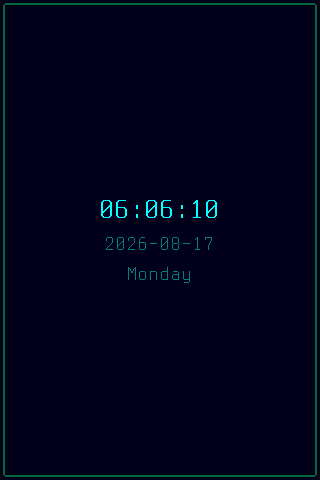
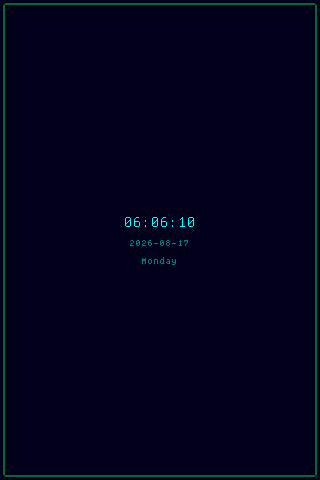
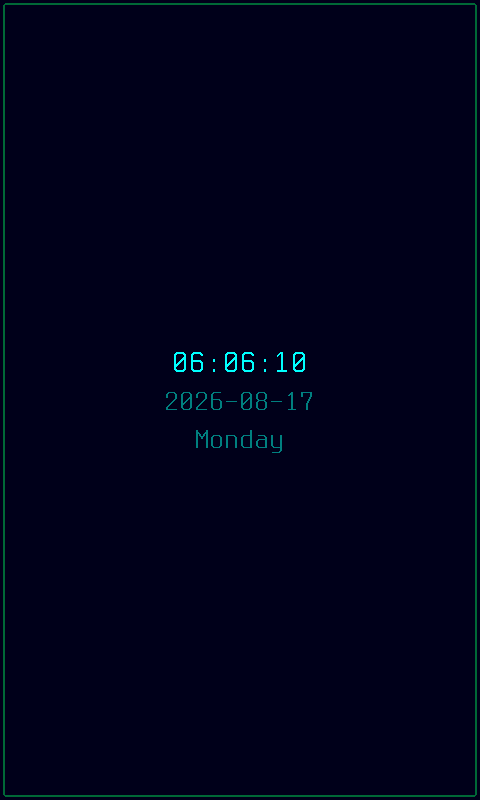
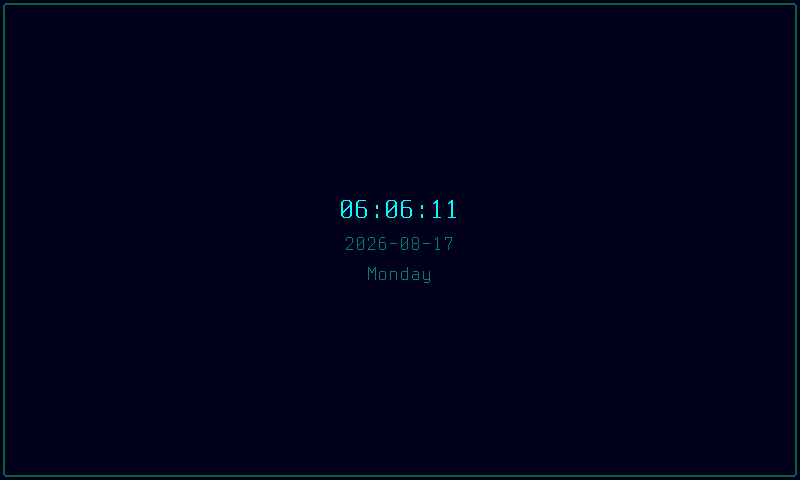
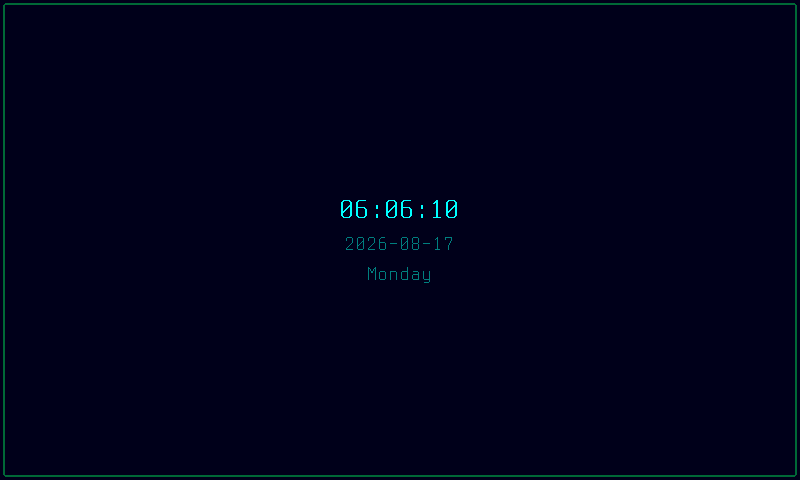
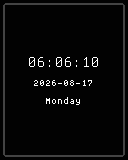
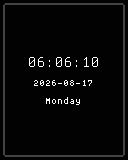
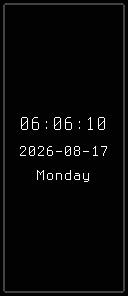
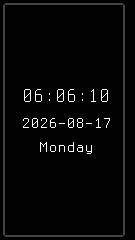
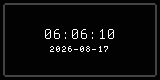
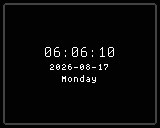
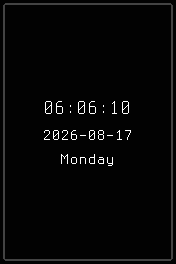
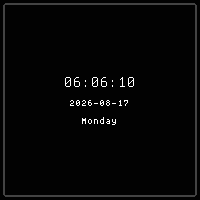
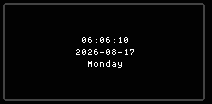
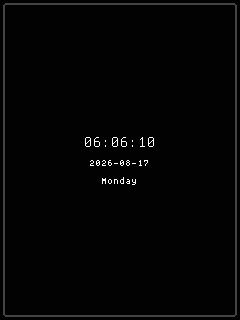
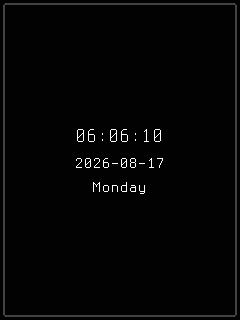
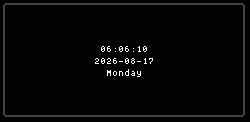
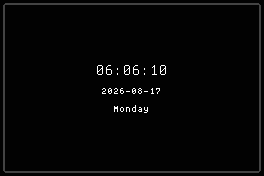
The mode renders up to three rows of information — time, date, and weekday — with automatic font selection and layout optimization for the available panel space. Rows that don't fit are automatically omitted (weekday first, then date), ensuring the time is always visible.
Styles
The daemon automatically selects a style based on your panel's resolution and capability. You don't normally need to set this manually. Use cyberhudctl display clock to see what style is active.
Options
| Key | Type | Description | Default | Allowed Values |
|---|---|---|---|---|
| style | string | Resolution-specific visual layout (auto-selected based on panel) | (auto) | Resolution-specific names (e.g., color-240x240, mono-128x64) |
| show_seconds | bool | Whether to display seconds | true | true, false |
| time_format | string | 12-hour or 24-hour time | 24h | 24h, 12h |
| date_format | string | Date layout or hidden | YYYY-MM-DD | YYYY-MM-DD, DD-MM-YYYY, MM-DD-YYYY, none |
| timezone | string | IANA timezone or system local | local | Any valid IANA timezone (e.g., America/New_York, Europe/London, UTC) or "local" |
| show_weekday | bool | Show the weekday name row | true | true, false |
| blink_colon | bool | Animate colon separator on/off each second | false | true, false |
| fgcolor | string | Foreground color for time text on color panels | cyan | cyan, green, amber, red, white, none |
| show_led | bool | Show LED seconds indicator when seconds digits are hidden | true | true, false |
| seconds_bar | string | Progress bar style showing seconds within current minute | none | none, horizontal, pie |
| show_daybar | bool | Show sparkline bar indicating day progress | false | true, false |
| show_border | bool | Show rounded decorative border frame around the panel edge | false | true, false |
| border_color | string | Border frame color on color panels, or auto to inherit the active fgcolor | auto | cyan, green, emerald, amber, red, white, none, auto |
Configure options via the CLI:
CLI Examples
Set 12-hour time with green foreground:
Show a European date format with no seconds:
Display a different timezone:
Time-only display — hide date and weekday for maximum digit size:
Enable the blinking colon animation:
Set a green foreground color with 12-hour time:
Disable the LED indicator and enable the blinking colon instead:
Show a horizontal seconds progress bar with no seconds digits:
Enable the day-progress sparkline:
Query all current settings:
This returns all key=value pairs reflecting the active configuration.
Time Format
The time_format option controls how hours are displayed:
- 24h — hours 00–23 with leading zero, no AM/PM indicator (e.g.,
14:30:05) - 12h — hours 1–12 without leading zero, with AM/PM suffix (e.g.,
2:30:05 PM)
The AM/PM indicator is included in the font-sizing calculation, so the selected font will always fit the full time string.
Date Format
The date_format option controls the date row:
- YYYY-MM-DD — ISO format (e.g.,
2025-06-21) - DD-MM-YYYY — day first (e.g.,
21-06-2025) - MM-DD-YYYY — month first (e.g.,
06-21-2025) - none — hides the date row entirely
Timezone
Set timezone to any valid IANA timezone identifier (e.g., Europe/London, Asia/Tokyo, Pacific/Auckland) to display time for that location. The default local uses your system's timezone. Invalid timezone strings silently fall back to local.
Weekday Display
The weekday row (e.g., "Monday") is shown when show_weekday is true and the panel has enough vertical space to fit a third text row below time and date. On very small panels (e.g., 128×32), the weekday is automatically omitted regardless of this setting because there isn't room.
Blinking Colon
When blink_colon is enabled, the colon separators in the time string alternate between visible (:) on even seconds and hidden (space) on odd seconds. This provides a visual activity indicator. The blink evaluates every second even when show_seconds is false.
Border Frame
When show_border is enabled, an 8-pixel decorative tile border is drawn around the panel edge. Content is inset by 8 pixels on each side to avoid overlap. The border is identical across all styles and requires a panel of at least 16×16 pixels — smaller panels skip the border automatically.
Foreground Color
The fgcolor option controls the text color on color-capable panels. The time row is rendered in the full foreground color, while date and weekday rows use a dimmed variant (each RGB channel halved) for visual hierarchy.
Available foreground colors:
- cyan (default) — bright cyan (0, 255, 255)
- green — soft green (0, 200, 0)
- amber — warm amber (255, 191, 0)
- red — vivid red (255, 0, 0)
- white — plain white (255, 255, 255)
- none — renders all text in white, same as "white"
On monochrome panels the foreground color setting is ignored and all text uses the panel's native foreground color.
LED Seconds Indicator
The show_led option enables a small 6×6 pixel LED dot in the top-right corner of the display. It blinks on/off each second, providing a subtle activity indicator that confirms the clock is updating — useful when seconds digits are hidden.
The LED is automatically suppressed when:
show_secondsistrue(seconds digits already show updates)- The LED's bounding box would overlap a text row
The LED defaults to on (true), so it appears automatically whenever seconds are hidden.
Seconds Progress Bar
The seconds_bar option renders a visual progress indicator showing how far through the current minute the clock has advanced:
- none (default) — no bar shown
- horizontal — a thin 4-pixel-tall bar spanning the full content width at the bottom of the display, filling left-to-right as seconds tick from 0 to 59
- pie — a 16×16 pixel pie-chart widget in the bottom-right corner, sweeping clockwise
The progress bar is suppressed when the effective display height is less than 48 pixels. On color panels the bar uses the active foreground color; on monochrome panels it renders in white.
When the seconds bar is active, the available content height is reduced by the bar's height (4px for horizontal, 16px for pie) so text rows don't overlap it.
Day Progress Sparkline
The show_daybar option renders a horizontal sparkline at the bottom of the display showing how far through the current 24-hour day you are. It computes progress as (hour × 60 + minute) / 1440.
The sparkline is 8 pixels tall and spans the full effective width, positioned 12 pixels from the bottom panel edge. On color panels it uses the foreground color at 30% brightness for a subtle background element.
The daybar requires a panel height of at least 128 pixels — it is suppressed on shorter displays.
Layout Behavior
The clock mode optimizes vertical space automatically:
- Row omission — if content doesn't fit the panel height, rows are dropped from the bottom (weekday first, then date). The time row is always preserved.
- Vertical centering — the content block is centered vertically within the available space.
- Horizontal centering — each row is individually centered horizontally using its font metrics.
- Adaptive fonts — the largest available font that fits the panel width is selected automatically, recalculated on each render to respond to configuration changes.
Panel Compatibility
The clock mode is non-interactive and works on all panels regardless of input controls. It does not require buttons, joystick, or any specific resolution — the selected style adapts its rendering to fit the available display area. On monochrome panels, color information is discarded and all text renders in the native foreground color. On slow-refresh panels, the blink_colon feature is automatically suppressed to avoid excessive redraws.
| Capability | Description | Behavior |
|---|---|---|
| MonoFast | Fast-refresh monochrome OLED (128×32, 128×64, 128×128) | Fully supported — time text renders in white with adaptive font sizing, colon blink animates smoothly |
| MonoSlow | Slow-refresh monochrome e-ink (122×250, 176×264, 200×200, 296×128, 400×300, 480×800, 800×480) | Fully supported — static time display, blink_colon forced off to prevent flicker, updates once per minute |
| GrayscaleFast | Fast-refresh grayscale (160×80, 240×135, 240×240, 320×240, 480×320, 800×480) | Fully supported — grayscale text rendering with smooth colon blink animation |
| GrayscaleSlow | Slow-refresh grayscale e-ink (122×250, 176×264, 200×200, 400×300, 800×480) | Fully supported — static time display, blink_colon forced off, updates once per minute |
| ColorFast | Fast-refresh color TFT (128×128, 160×80, 240×135, 240×240, 320×240, 480×320, 800×480) | Fully supported — full color rendering with accent-colored text and smooth animation |
| ColorSlow | Slow-refresh color e-ink (122×250, 176×264, 200×200, 400×300, 800×480) | Fully supported — static color time display, blink_colon forced off, updates once per minute |
Tip
Use show_seconds=false and blink_colon=false on battery-powered setups to reduce redraw frequency from once per second to once per minute.
Related Pages
- Display Modes — overview of all available modes
- Getting Started: CLI Usage — introduction to
cyberhudctlcommands - Configuration — persistent configuration options
- Cycle — auto-cycles through modes including clock
Snapshots
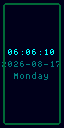
Color

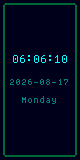

Grayscale

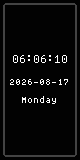
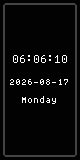
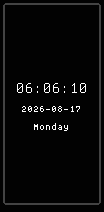
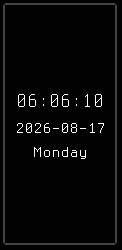
Mono