ZMQ
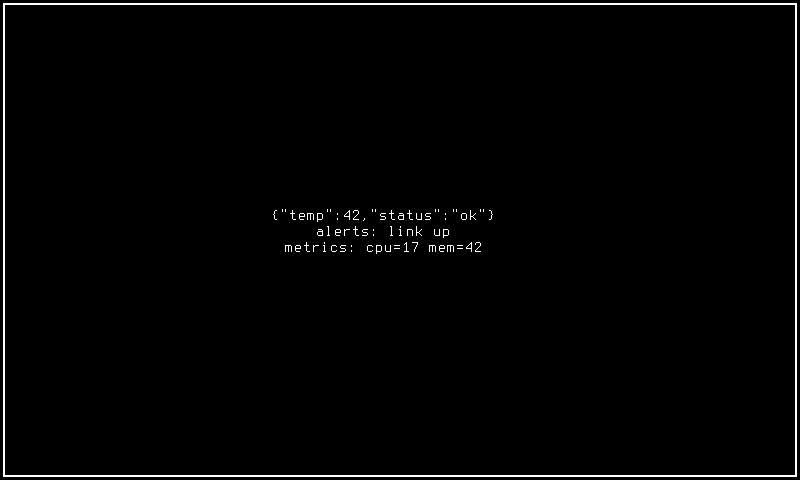
The zmq display mode subscribes to ZeroMQ message streams and renders incoming data on the panel display. It supports PUB/SUB and PULL socket types, optional JSON field extraction, and configurable line buffering for real-time message monitoring.
Quick Start
How It Works
The zmq mode connects to a ZeroMQ endpoint (SUB or PULL socket) and ingests messages into a bounded ring buffer. Each incoming message is rendered as a text line on the panel surface, with the newest messages appearing at the bottom of the display. The mode updates the display each time a new message arrives, providing real-time streaming output.
When JSON field filtering is configured via json_fields, the mode parses each incoming message as a JSON object and extracts only the specified fields, displaying them as "key: value" lines. Messages that are not valid JSON or that lack the specified fields are displayed verbatim. When no messages have been received, the display shows a waiting state (style-dependent: "Waiting for messages..." or "(no messages)").
The mode supports multiple visual styles that are automatically selected based on your panel's resolution and capability class. Each style fits content to the available panel area, truncating long lines and showing the most recent messages that fit vertically.
Options
| Key | Type | Description | Default | Allowed Values |
|---|---|---|---|---|
endpoint |
string | ZMQ connection endpoint URL where the mode dials to receive messages (e.g. tcp://localhost:5556) | any valid string | |
socket_type |
string | ZeroMQ socket type determining the messaging pattern used to receive data from the endpoint | sub | sub, pull |
topic |
string | Subscription topic filter applied to SUB sockets to select which messages are received (ignored for PULL) | any valid string | |
max_lines |
int | Ring buffer capacity controlling how many message lines are retained and available for display rendering | 24 | 1–1000 |
json_fields |
string | Comma-separated list of JSON field names to extract and display from incoming structured messages | any valid string | |
font |
string | Font selection for text rendering, using auto for automatic best-fit or a registered font ID | auto | any valid string |
style |
string | Visual presentation style controlling the layout, font sizing, and spatial arrangement of rendered messages | Resolution-specific style names |
CLI Examples
Activate the zmq mode on the main display region:
Configure the ZMQ endpoint and socket type for a PUB/SUB stream:
Use PULL socket with JSON field filtering to show only specific data:
cyberhudctl display zmq endpoint=tcp://192.168.1.10:5557 socket_type=pull json_fields=temperature,humidity
Increase the message buffer to retain more history:
Query current zmq mode settings:
Panel Compatibility
The zmq mode is a text-rendering mode with no interactive controls required. It works across all panel capability classes, adapting its output to the available display surface.
| Capability | Description | Behavior |
|---|---|---|
| MonoFast | Monochrome OLED with fast refresh | Fully supported. Text rendered in native foreground color with automatic font sizing. |
| MonoSlow | Monochrome e-ink with slow refresh | Fully supported. Sharp border frame on large panels. Updates only on new messages to minimize redraws. |
| GrayscaleFast | Grayscale display with fast refresh | Fully supported. Text rendered in white/light gray with automatic layout. |
| GrayscaleSlow | Grayscale e-ink with slow refresh | Fully supported. Static rendering with centered text block. Updates on new messages only. |
| ColorFast | Color TFT with fast refresh | Fully supported. Full-color text rendering with automatic layout. |
| ColorSlow | Color e-ink with slow refresh | Fully supported. Static rendering mode avoids unnecessary redraws between messages. |
No input controls (buttons or joystick) are required. The mode has no minimum resolution requirement — content is automatically truncated and fitted to any panel size.
Related Pages
- Display Modes — overview of all available modes
- Getting Started: CLI Usage — introduction to
cyberhudctlcommands - Configuration — persistent configuration options
- Ticker — external data feed display with similar streaming text
- Pager — file/pipe tailing mode with similar text rendering
Snapshots
Mono