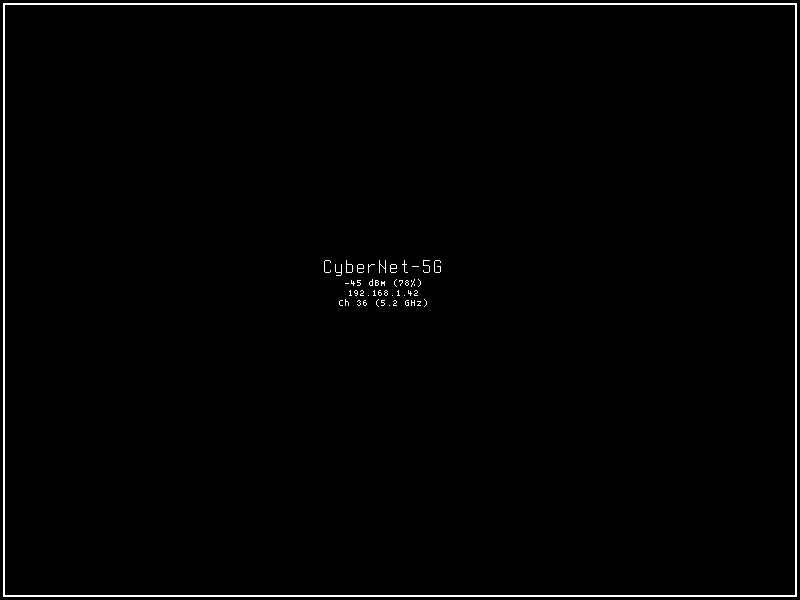
WiFi
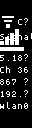
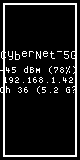
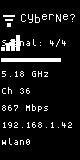
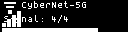
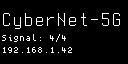
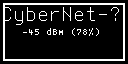
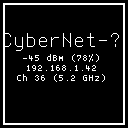
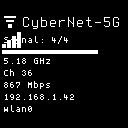
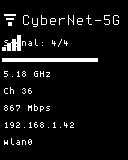
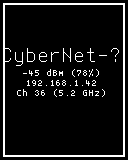
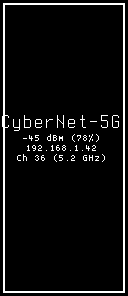
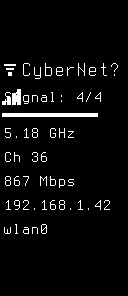
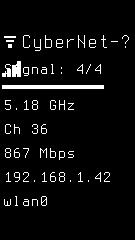
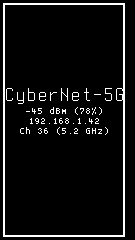
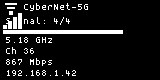
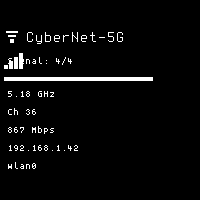
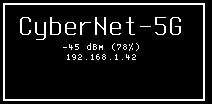
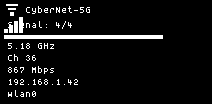
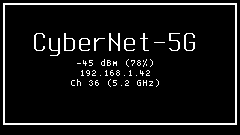
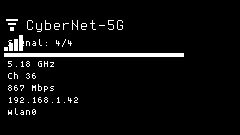
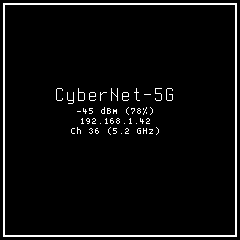
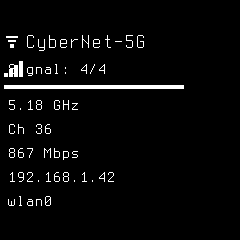
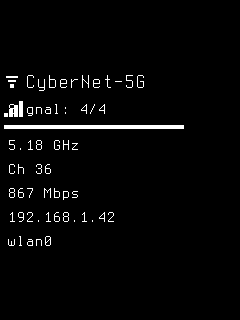
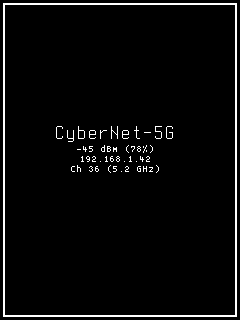
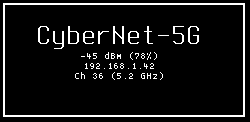
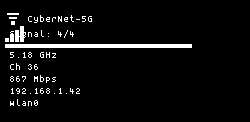
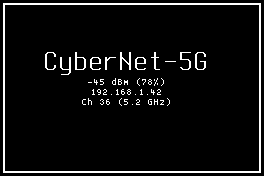
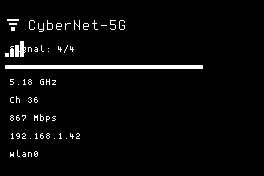
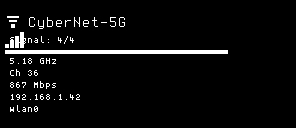
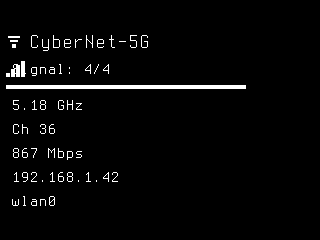
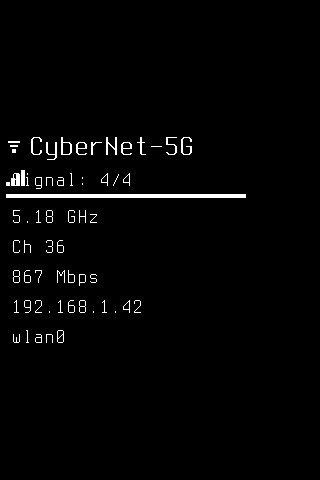
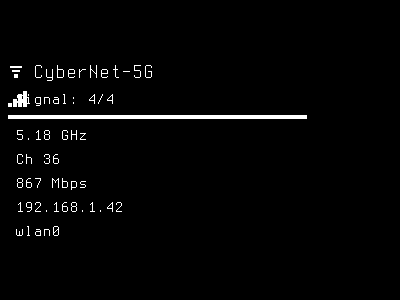
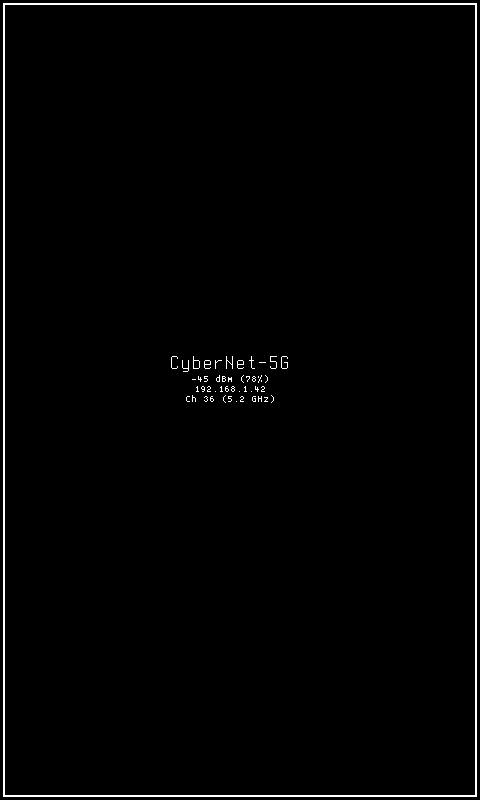
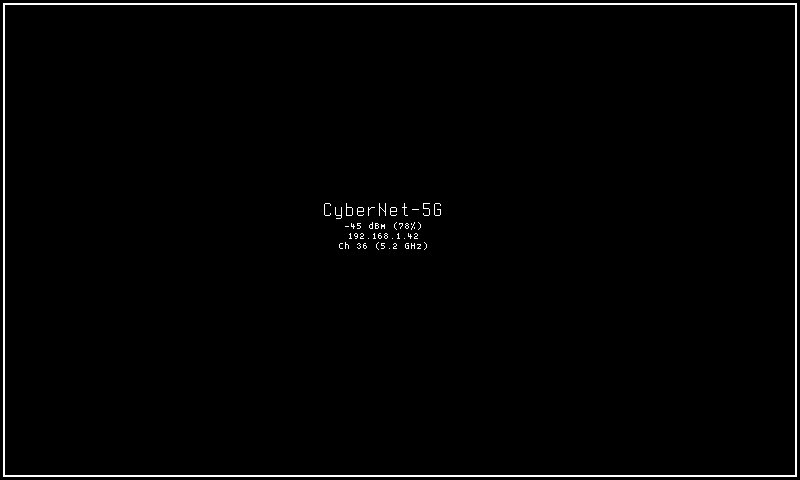
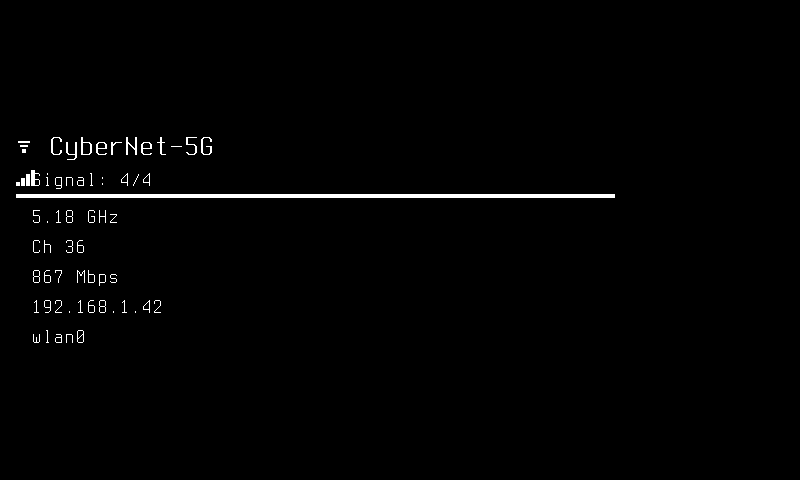
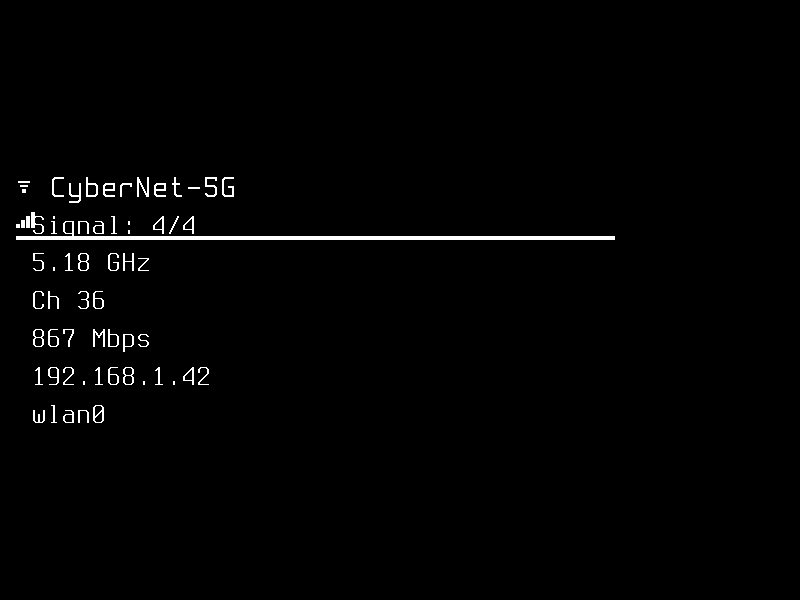
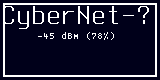
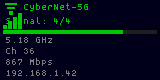
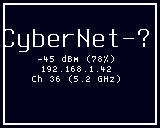
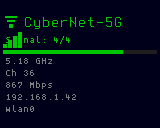
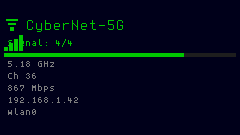
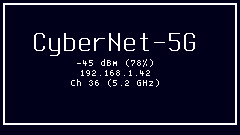
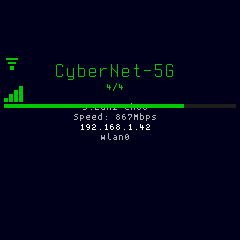
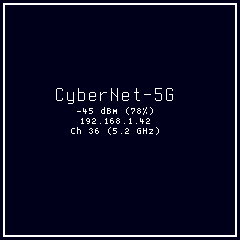
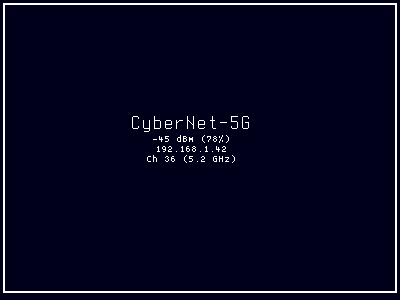
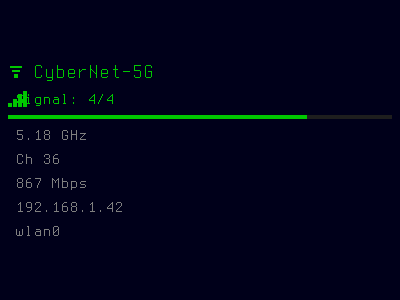
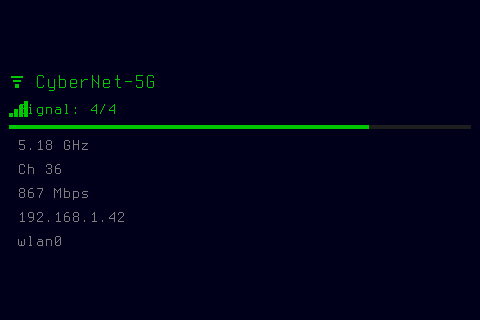
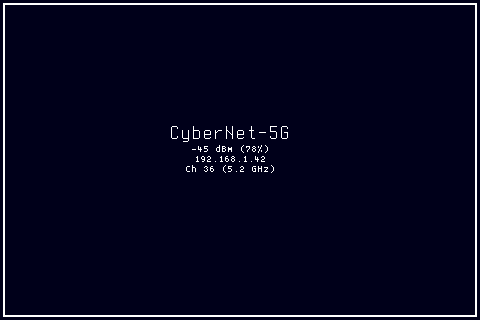
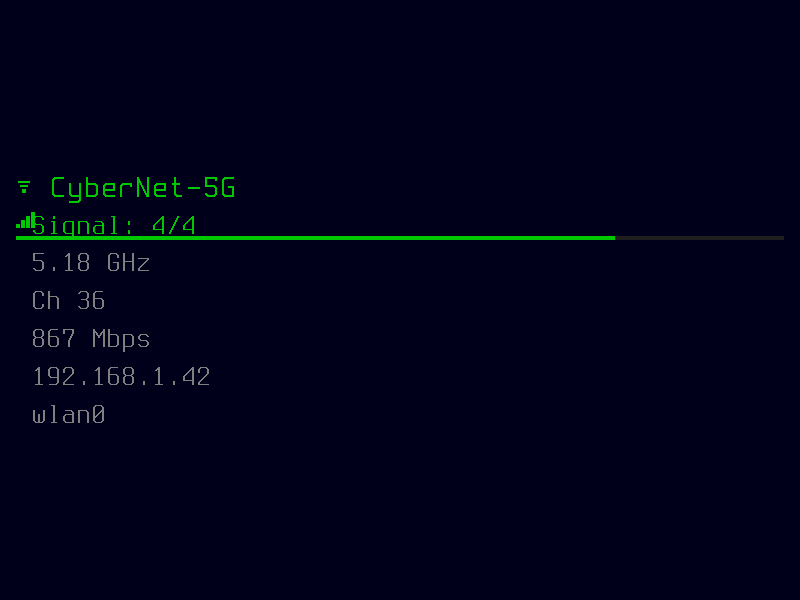
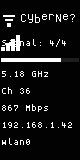
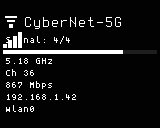
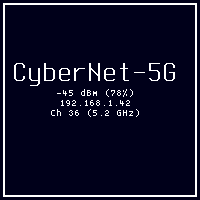
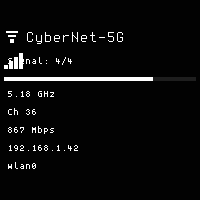
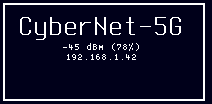
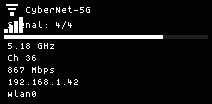
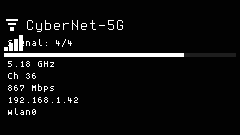
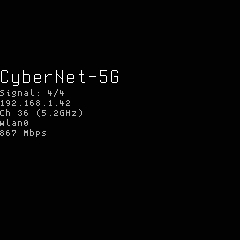
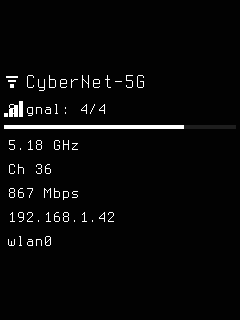
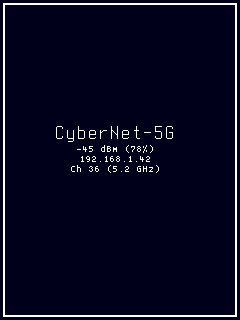
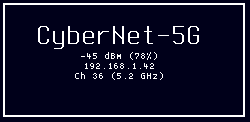
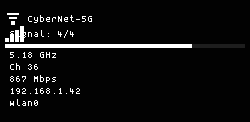
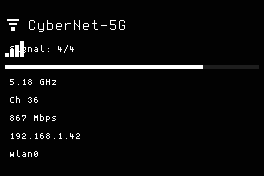
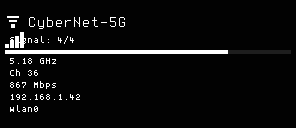
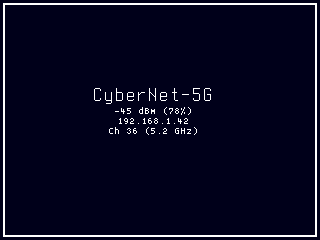
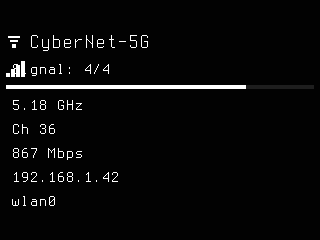
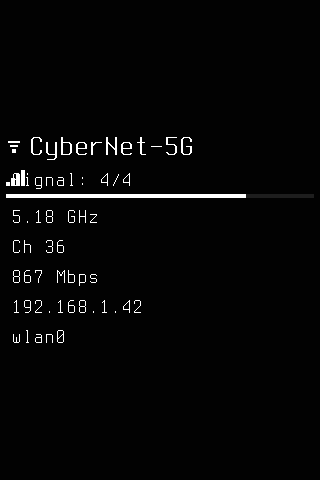
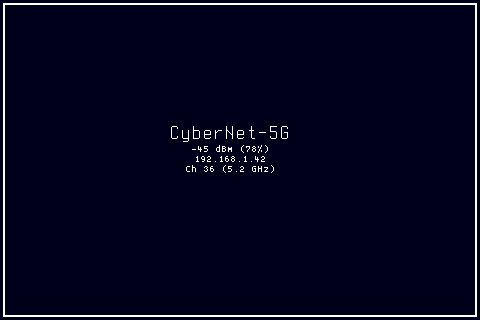
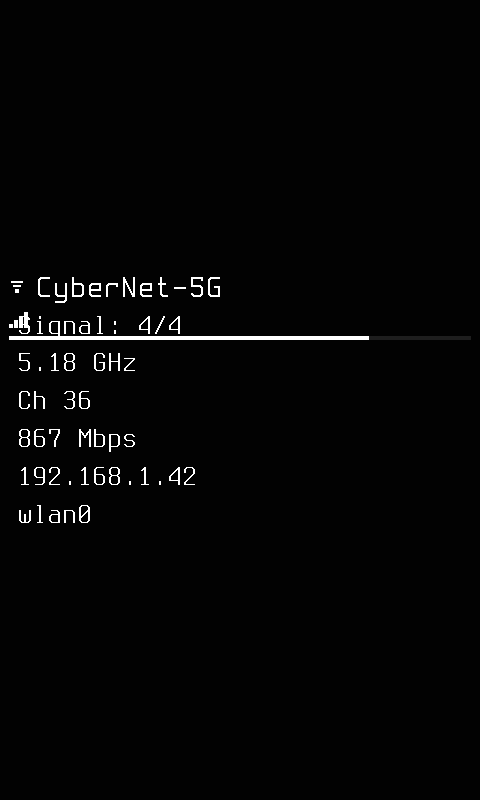
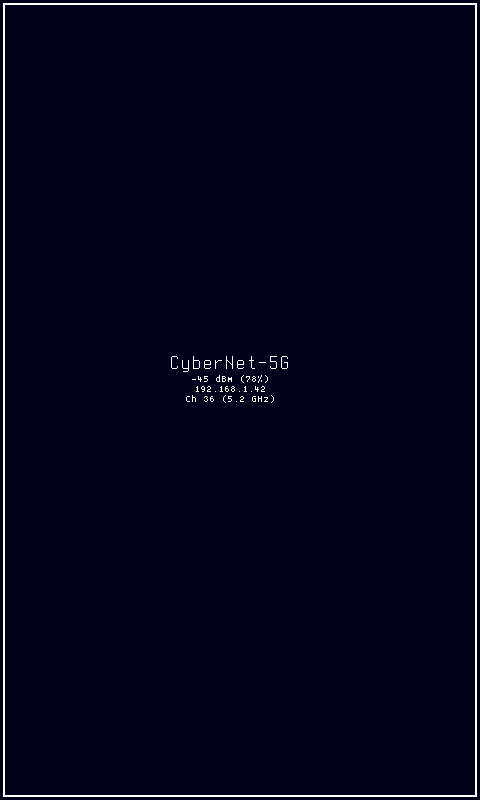
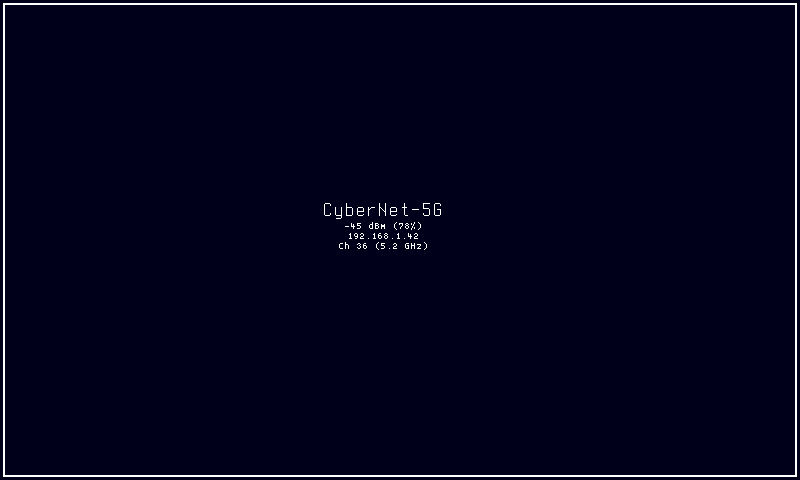
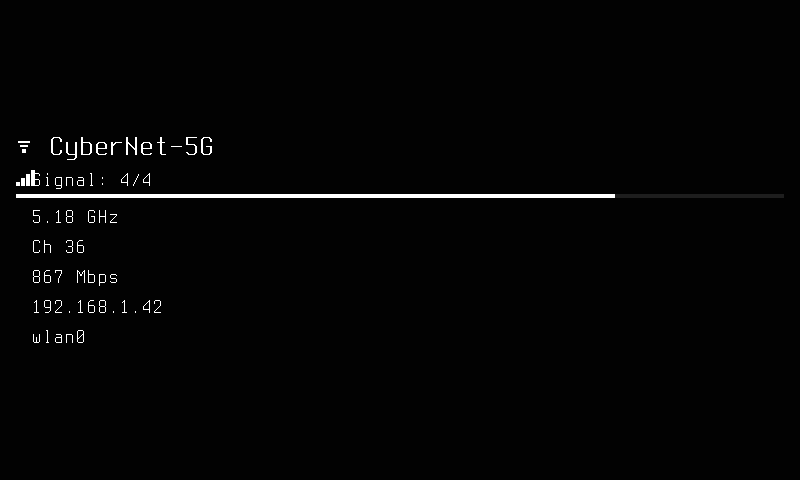
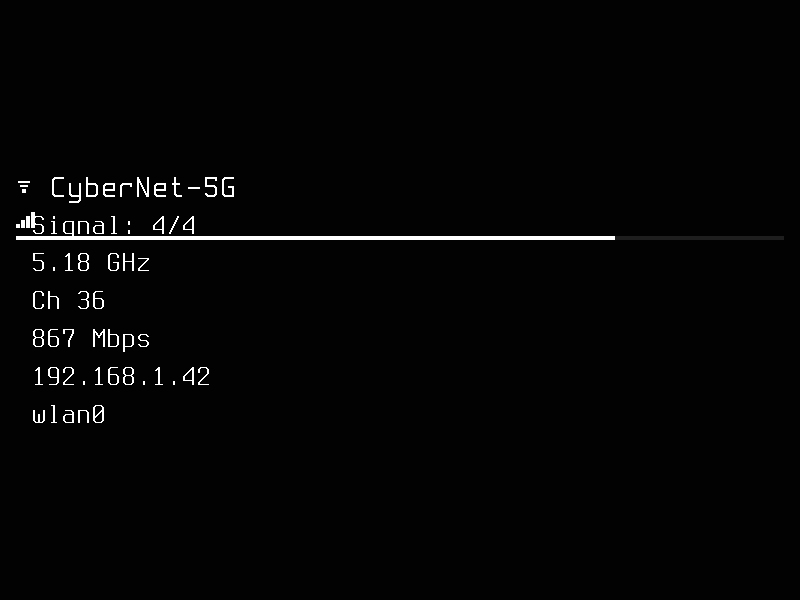
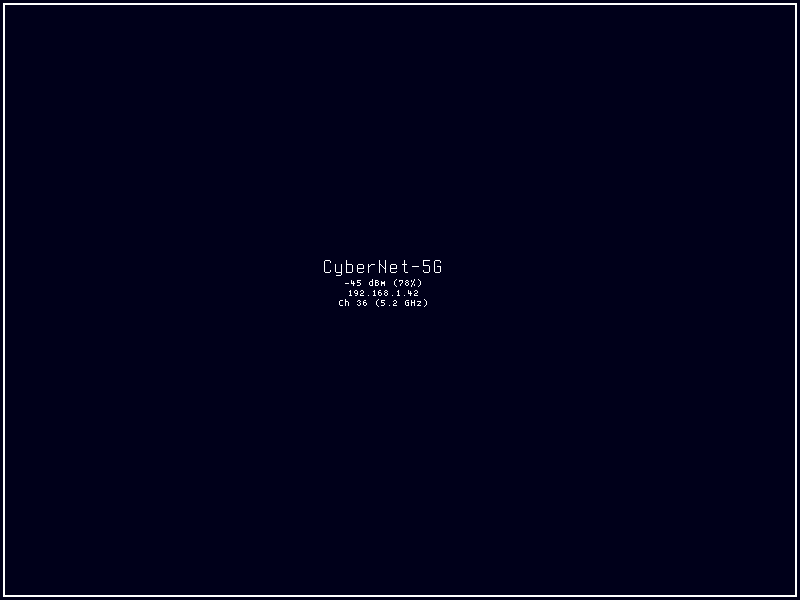
The wifi display mode shows real-time wireless network connection status including signal strength, SSID, IP address, channel, frequency, and link speed. It reads interface state via NL80211 (netlink) on Linux and presents connection details through a visually rich layout with a WiFi icon sprite, color-coded signal bars, and a link quality progress bar.
Quick Start
How It Works
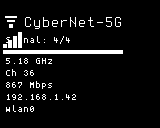
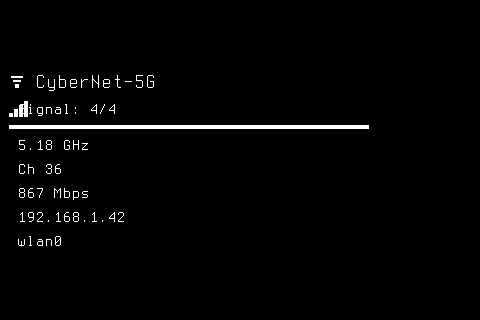
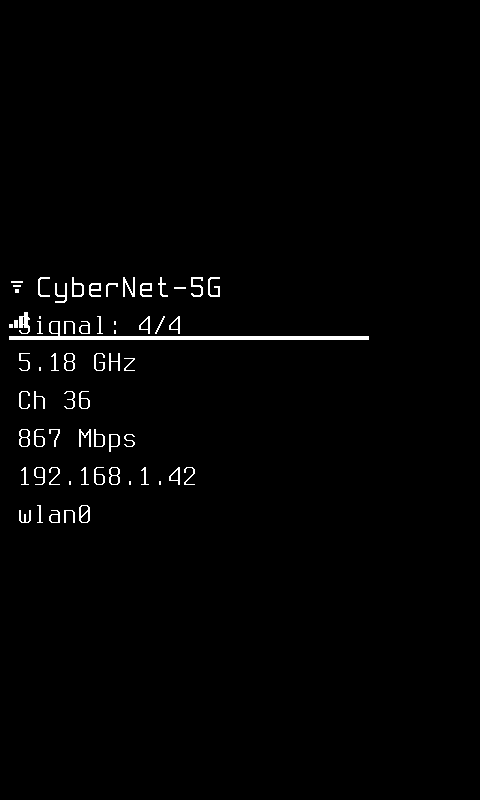
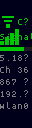
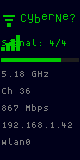
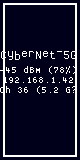
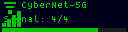
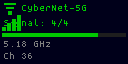
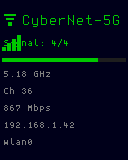
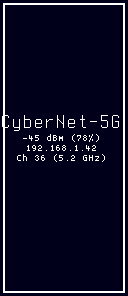
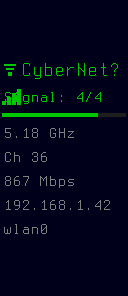
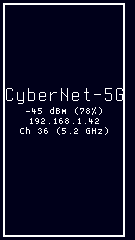
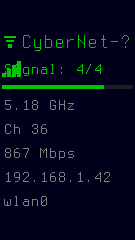
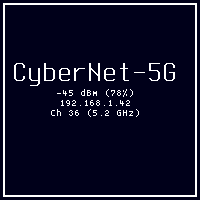
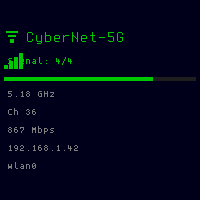
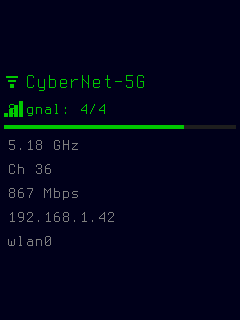
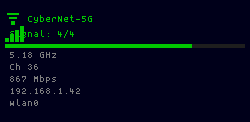
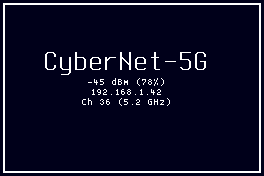
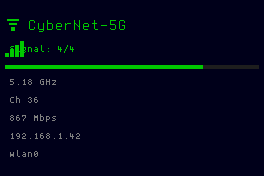
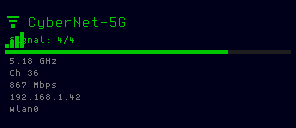
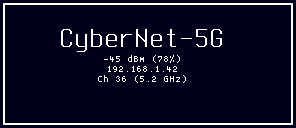
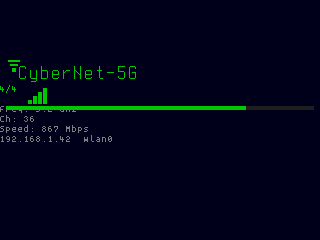
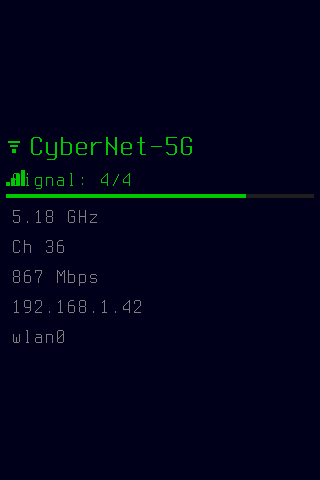
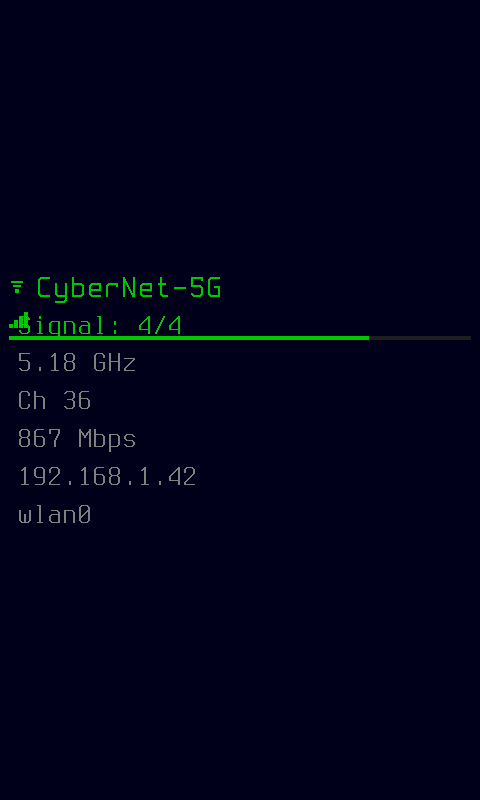
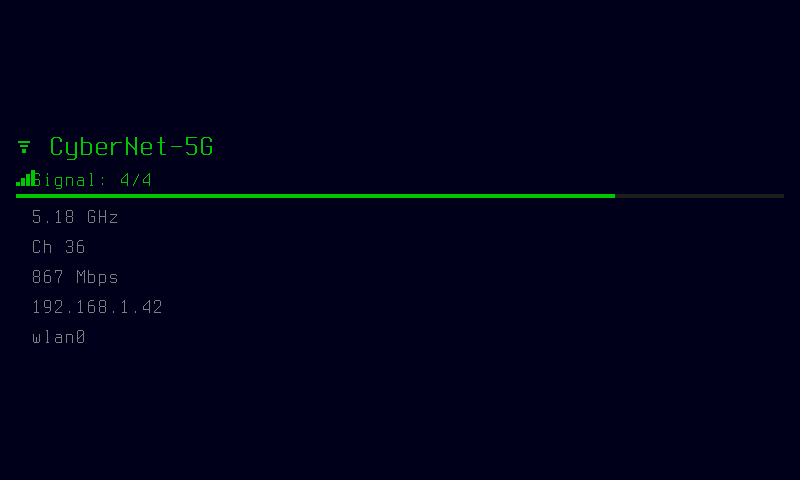
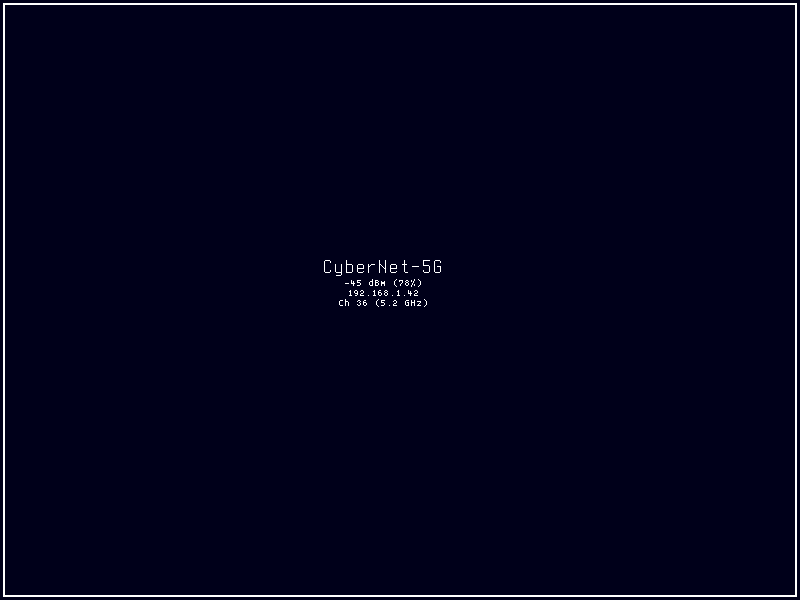
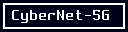
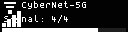
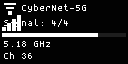
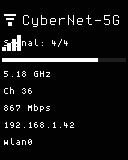
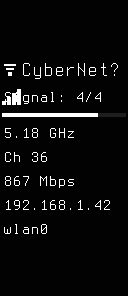
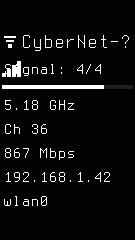
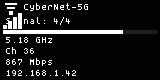
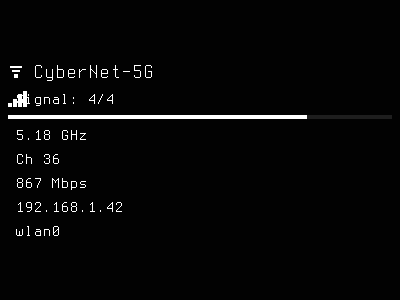
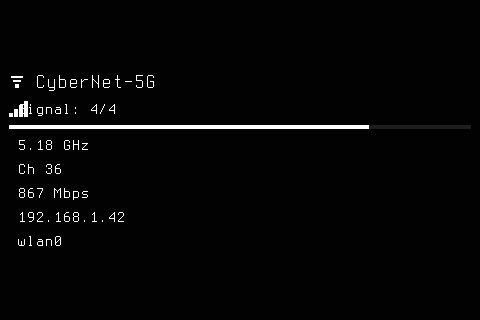
The WiFi mode queries the system's wireless interface via NL80211 netlink on each render cycle and displays connection details as a multi-row layout with graphical indicators. The display renders a WiFi icon sprite, signal strength bars (color-coded by quality level), a horizontal link quality progress bar, and detail rows showing SSID, frequency band, channel number, IP address, and interface name. Each render produces a data-signature fingerprint incorporating connection state, signal metrics, and all policy fields so the display runtime skips unnecessary re-renders when nothing has changed.
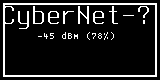
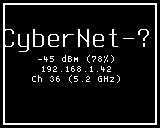
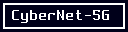
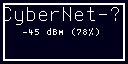
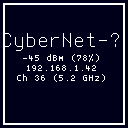
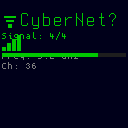
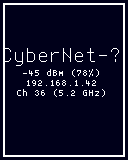
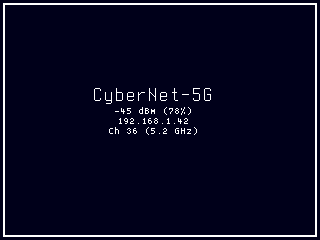
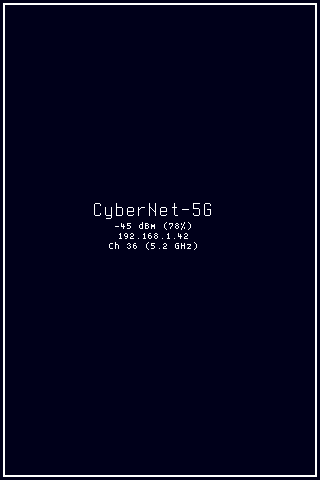
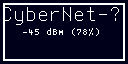
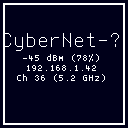
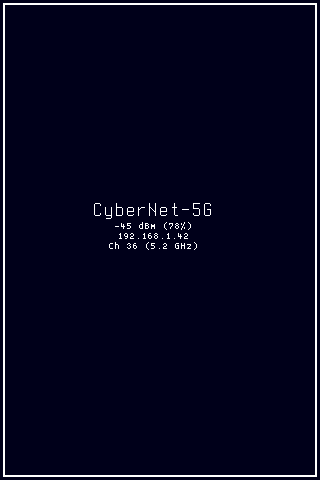
When no wireless interface is detected the mode displays "WiFi N/A", and when the interface exists but is not associated it shows "No Network" — both states render gracefully without errors. The signal strength is represented in one of three formats controlled by the signal_display option: vertical bars (0–4 levels mapped from dBm thresholds), a percentage (linear interpolation from -100 dBm to -30 dBm), or raw dBm value. On color panels, signal bars use quality-mapped colors: the accent foreground color for strong signals (3–4 bars), amber for moderate (2 bars), and red for weak (0–1 bars).
The mode supports multiple resolution-specific styles organized by panel capability class (MonoSlow, MonoFast, GrayscaleSlow, GrayscaleFast, ColorSlow, ColorFast) with automatic style selection based on panel hints. Users can cycle styles via Left/Right input actions, force a refresh with the Secondary button, or navigate to the menu with Primary.
Options
| Key | Type | Description | Default | Allowed Values |
|---|---|---|---|---|
fgcolor |
string | Foreground color for WiFi display elements including signal bars, icon, and text on color-capable panels | green | cyan, green, amber, red, white, none |
signal_display |
string | Signal strength display format controlling how wireless signal quality is shown visually on the panel | bars | bars, percentage, dbm |
show_frequency |
bool | Show the WiFi frequency band (2.4GHz or 5GHz) in the connection details area of the display | true | true, false |
show_interface |
bool | Show the wireless interface name (e.g. wlan0) in the connection details area on the display | true | true, false |
show_channel |
bool | Show the WiFi channel number derived from the current frequency in the details area | true | true, false |
style |
string | Visual layout variant for WiFi display controlling spatial arrangement and detail level per panel resolution | Resolution-specific style names |
CLI Examples
Activate the WiFi mode on the main display region:
Switch the signal display format to show dBm values instead of bars:
Set a cyan foreground color and hide the interface name:
Show signal as a percentage and hide the channel number:
Query all current WiFi mode settings:
Panel Compatibility
The WiFi mode is fully supported across all six panel capability classes through resolution-specific style variants that adapt the layout to each display type. All 17 resolution families are available for every capability tier.
Resolution Families
| Resolution | Portrait Variant | Styles |
|---|---|---|
| 128×32 | 32×128 | 12 |
| 128×64 | — | 6 |
| 128×128 | — | 6 |
| 160×80 | 80×160 | 12 |
| 160×128 | 128×160 | 12 |
| 200×200 | — | 6 |
| 212×104 | — | 6 |
| 240×135 | 135×240 | 12 |
| 240×240 | — | 6 |
| 250×122 | — | 6 |
| 264×176 | — | 6 |
| 296×128 | 128×296 | 12 |
| 320×240 | 240×320 | 12 |
| 400×300 | — | 6 |
| 480×320 | 320×480 | 12 |
| 800×480 | 480×800 | 12 |
| 800×600 | — | 6 |
Capability Tiers
| Capability | Description | Behavior |
|---|---|---|
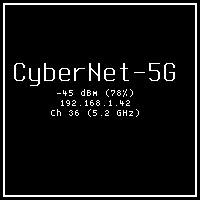
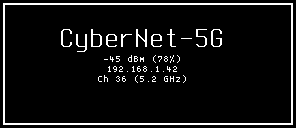
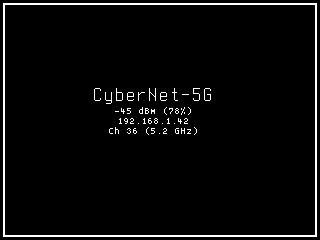
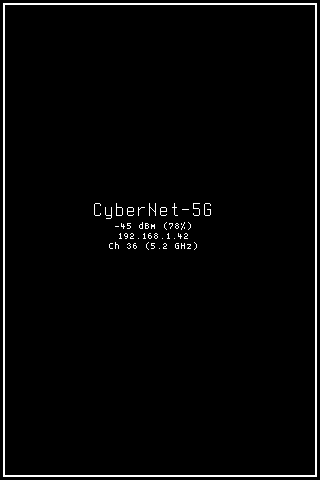
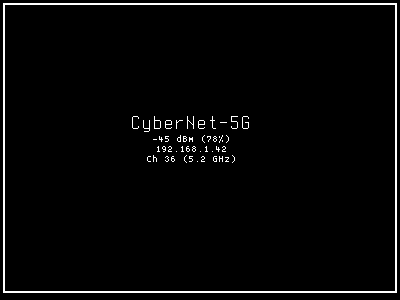
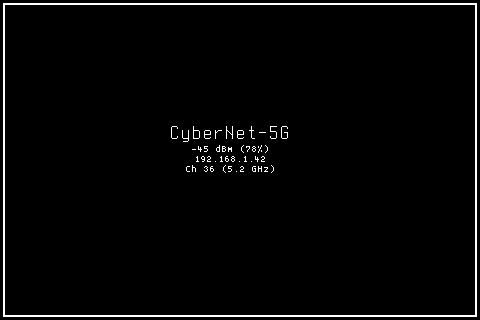
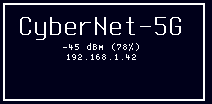
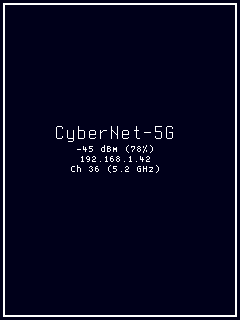
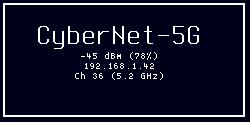
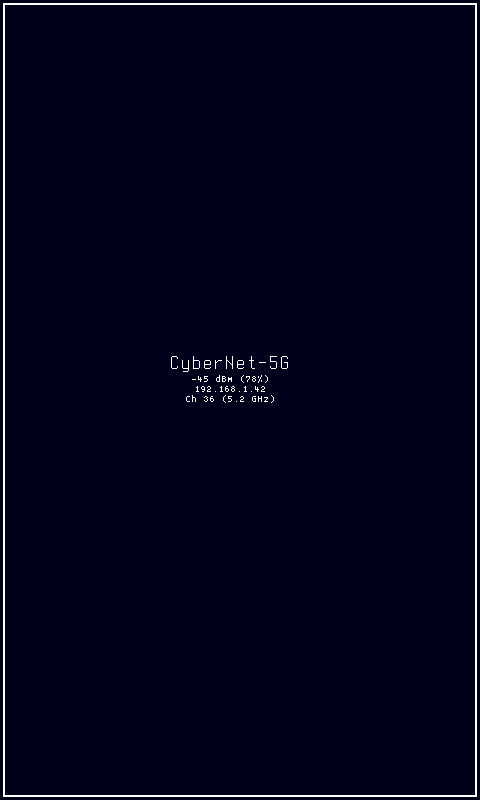
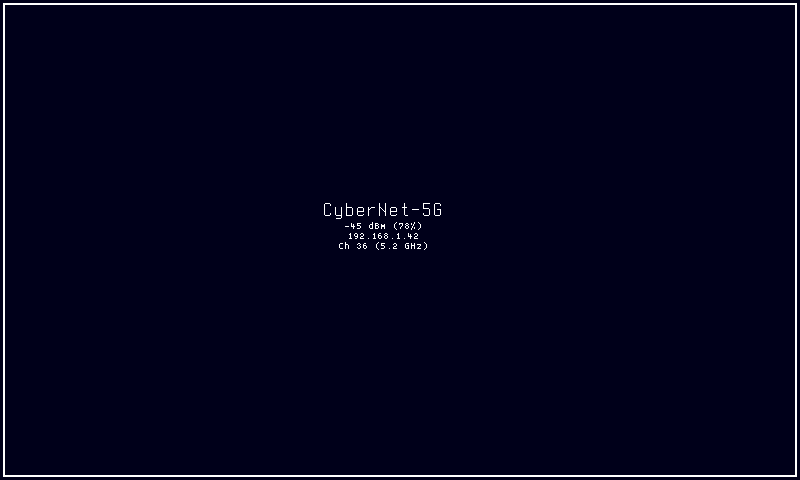
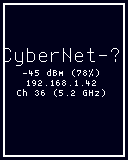
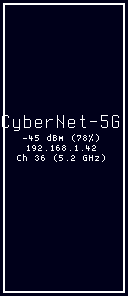
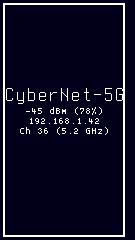
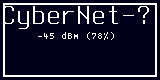
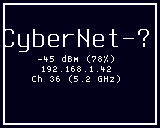
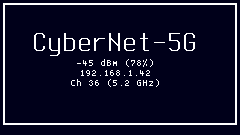
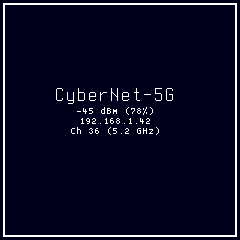
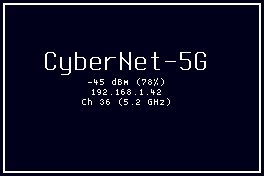
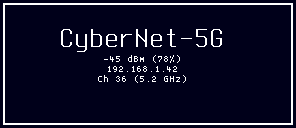
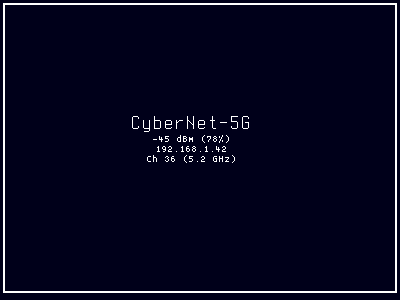
| MonoSlow | Monochrome e-paper displays with slow refresh | Fully supported. Static text-only layout with border frame optimized for infrequent refresh. Available at all 17 resolutions. |
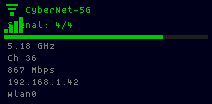
| MonoFast | Monochrome OLED displays with fast refresh | Fully supported. Renders WiFi icon, signal bars, and text rows in white. Available at all 17 resolutions. |
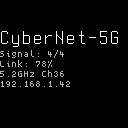
| GrayscaleSlow | Grayscale e-paper with slow refresh | Fully supported. Static layout with grayscale shading optimized for slow refresh panels. Available at all 17 resolutions. |
| GrayscaleFast | Grayscale LED matrix or fast grayscale displays | Fully supported. Uses grayscale shading for signal indicators with icon and progress bar. Available at all 17 resolutions. |
| ColorSlow | Color e-paper with slow refresh | Fully supported. Color layout with accent colors adapted for infrequent refresh. Available at all 17 resolutions. |
| ColorFast | Color TFT displays with fast refresh | Fully supported. Full color rendering with quality-mapped signal bar colors and configurable foreground accent. Available at all 17 resolutions. |
The mode does not require physical input controls — joystick Left/Right cycle styles and Primary navigates to menu, but these are optional conveniences. WiFi status displays correctly on headless panels without any input hardware.
Related Pages
- Display Modes — overview of all available modes
- Getting Started: CLI Usage — introduction to
cyberhudctlcommands - Configuration — persistent configuration options
- Cycle — auto-cycles through modes including wifi
- Dashboard — overview mode that also displays WiFi SSID
Snapshots
Color

Grayscale

Mono