Systemd Boot
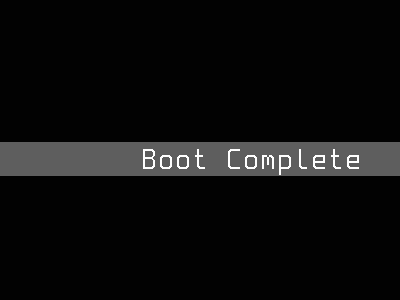
Boot progress and target transition diagnostics. Displays systemd target activation states during startup, providing visual confirmation that critical services initialized correctly. This mode is shown briefly on daemon boot before transitioning to the configured default.
Quick Start
How It Works
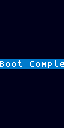
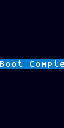
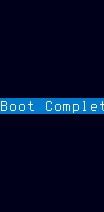
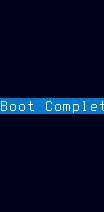
The systemd mode renders boot progress as text rows showing the desired target, currently loading target, last loaded target, and an active/total target count — with a color-coded accent gradient background on color panels that advances proportionally to boot completion (active targets / total targets). On monochrome and e-ink panels, the gradient is suppressed and only text rows are rendered.
The display updates on each render-loop tick by polling systemctl for target state: querying the default target, listing active jobs, checking whether multi-user.target is active, and enumerating all targets with their states. This makes updates effectively continuous during boot — the display reflects each target transition as it happens. Once multi-user.target becomes active, the mode marks boot as complete and automatically transitions to the panel's configured default mode.
The data source is the systemctl command-line interface queried via subprocess calls. When systemctl is unavailable (non-Linux systems or early boot before systemd is accessible), the mode falls back to a heuristic state machine: 0% with no target loading, 50% with first target loading, 75% with multiple targets loaded, and 100% on boot completion. The mode always displays meaningful content — it never shows an empty or error state to the user.
Info
Because this mode transitions away automatically, you will only see it briefly during system boot. It serves as a visual confirmation that critical services initialized correctly.
Styles
The style option controls the visual presentation:
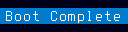
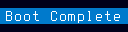
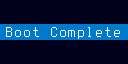
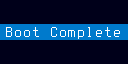
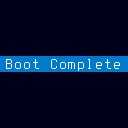
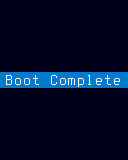
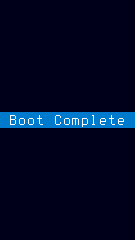
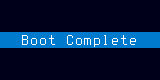
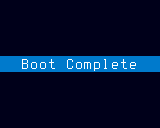
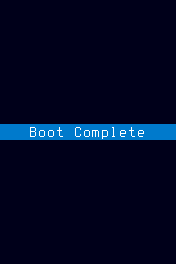
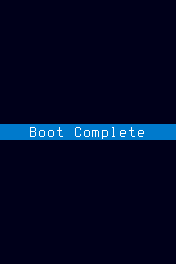
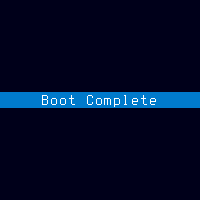
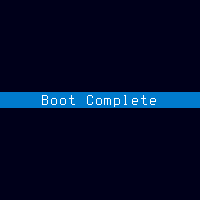
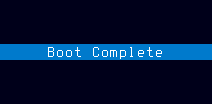
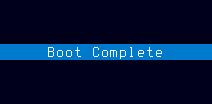
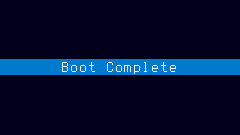
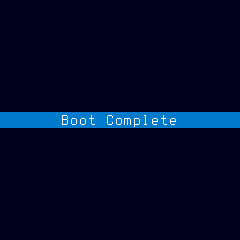
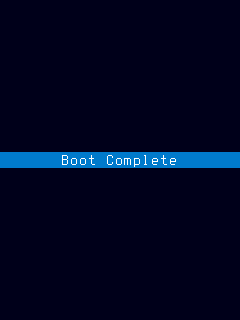
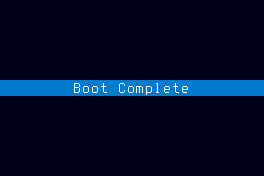
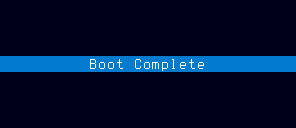
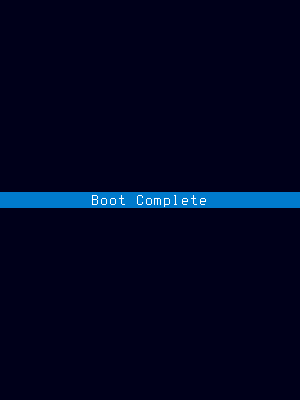
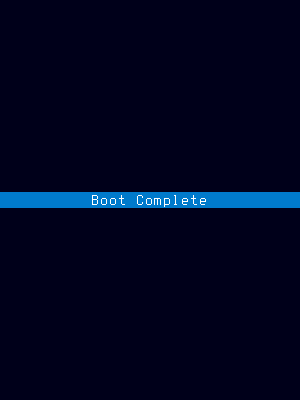
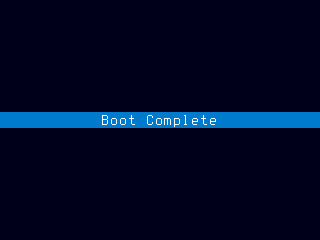
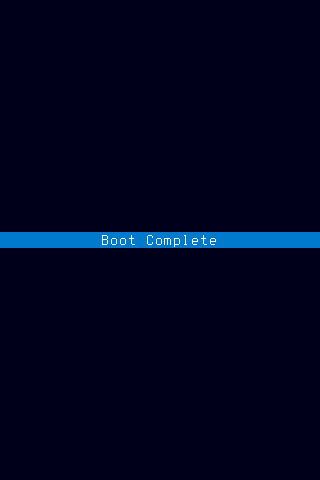
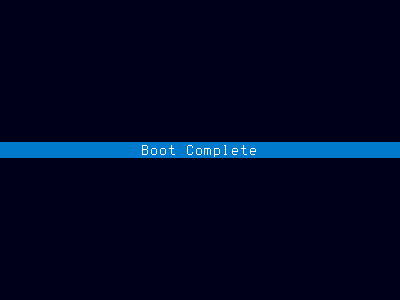
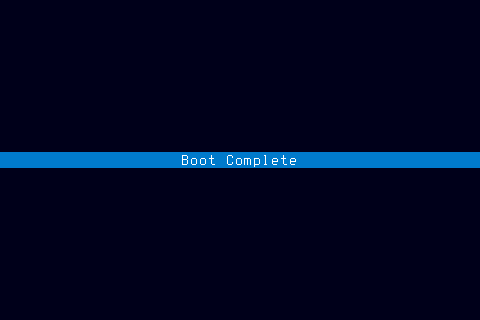
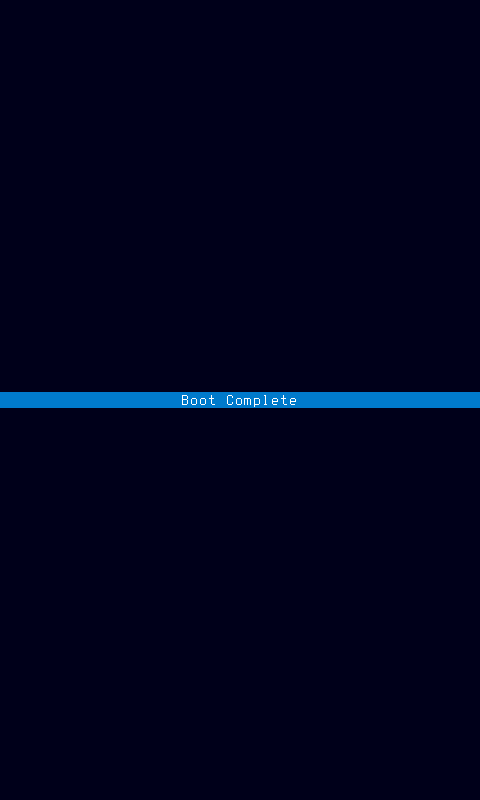
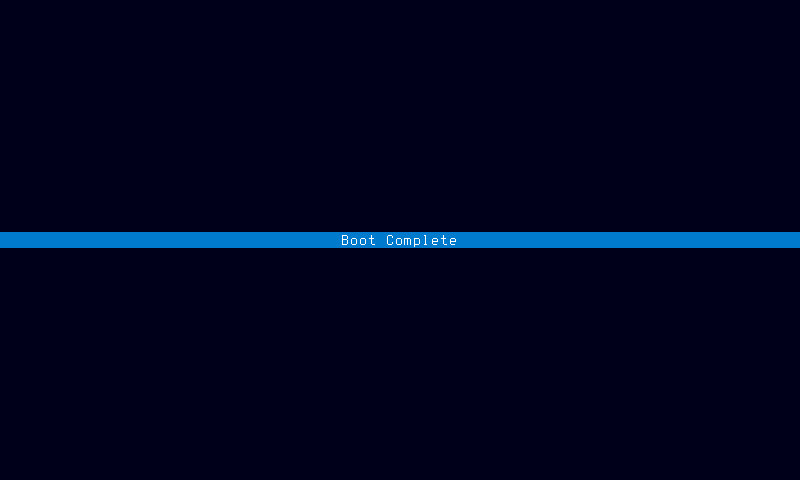
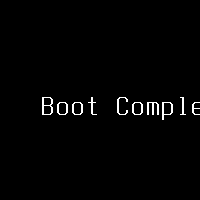
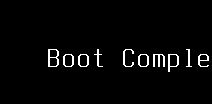
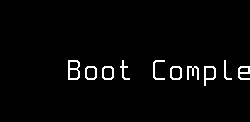
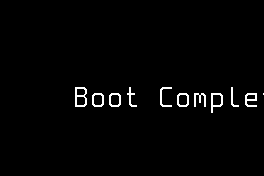
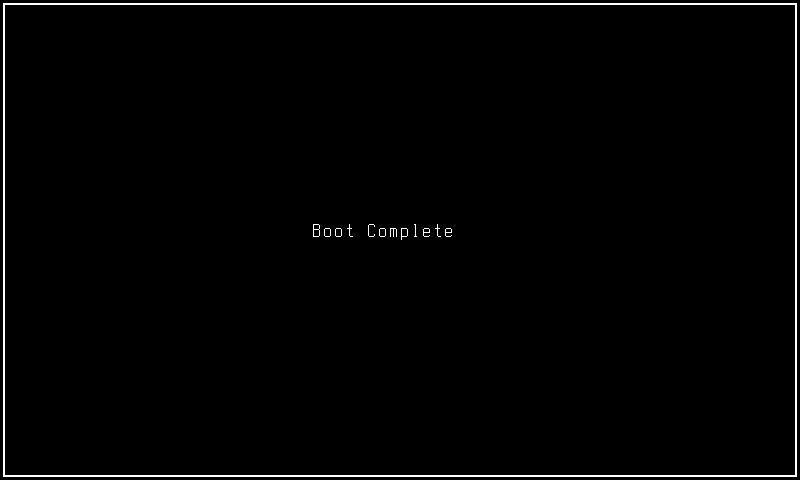
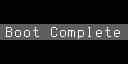
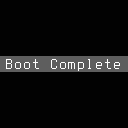
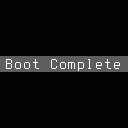
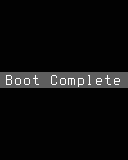
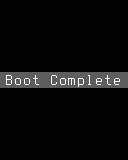
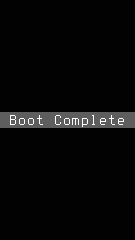
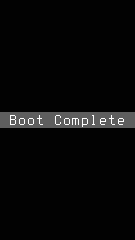
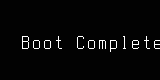
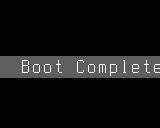
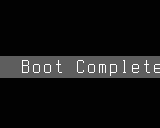
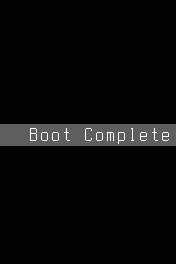
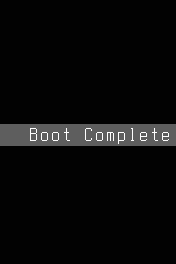
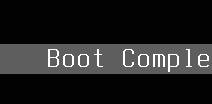
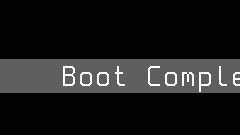
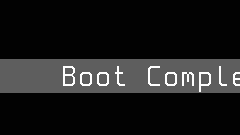
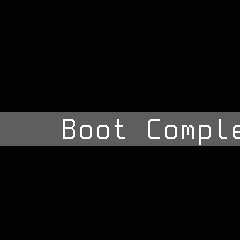
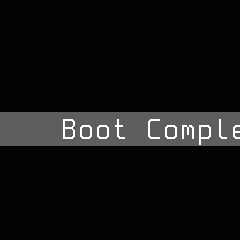
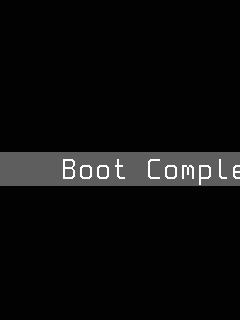
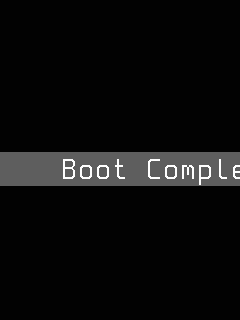
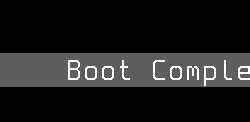
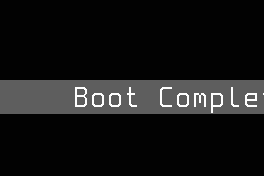
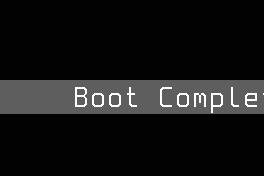
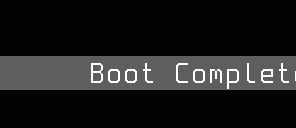
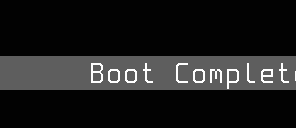
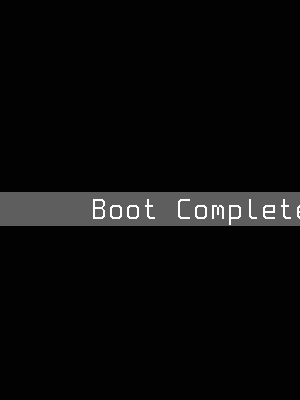
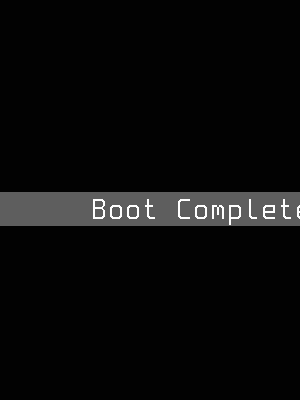
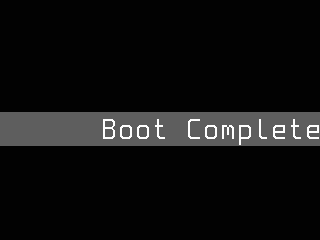
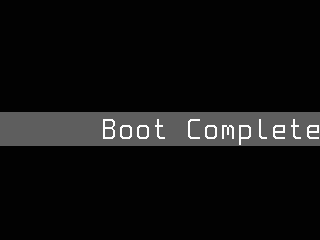
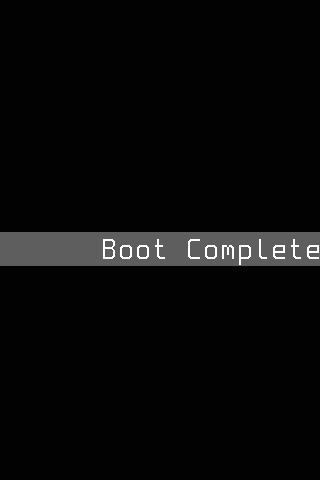
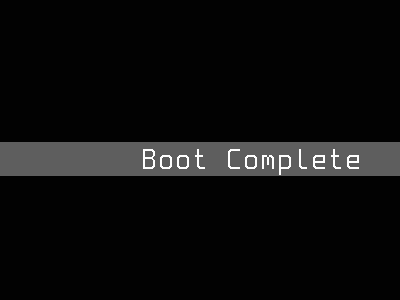
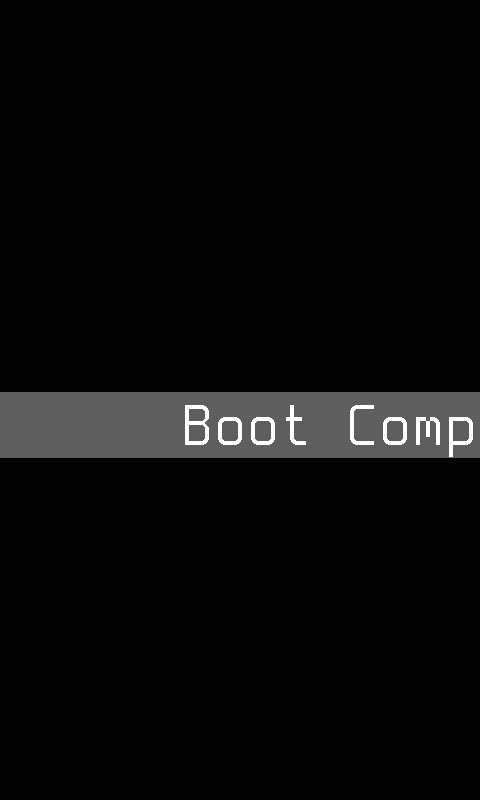
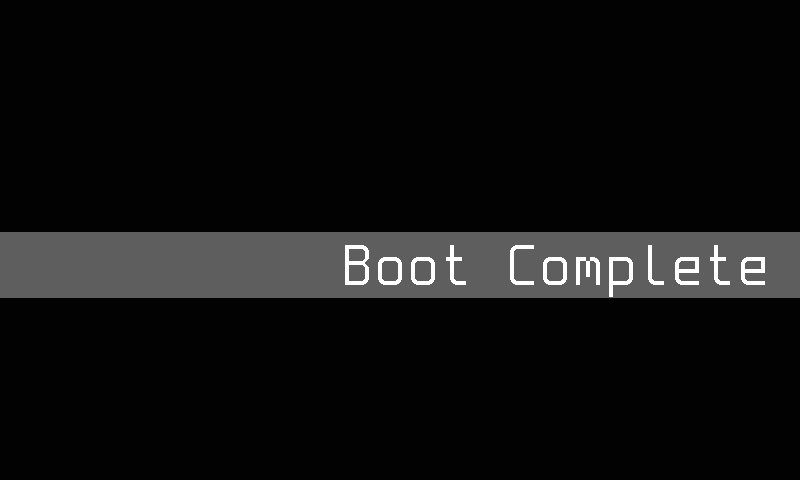
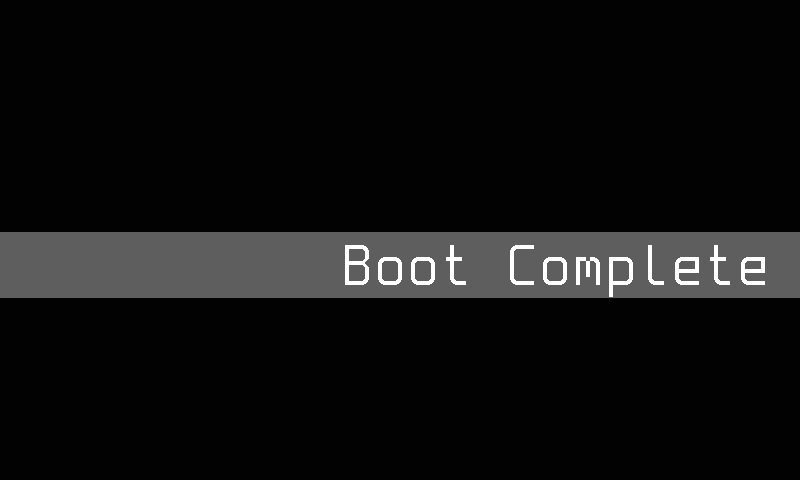
- default — multi-line text list showing "Booting...", loaded/loading targets, and desired target. Green "Boot Complete" with check icon when finished. Good general-purpose readout.
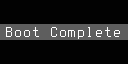
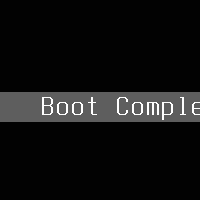
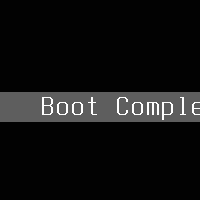
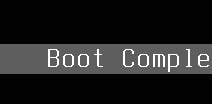
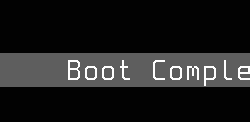
- minimal — single summary line: "Booting: target" or "Boot Complete". For narrow panels where a multi-line list would overflow.
- progress — horizontal progress bar showing boot completion fraction (active targets / total targets), with a text label below. Clean, visual, instantly readable from across the room.
- pie — radial/pie sweep indicator showing the same completion fraction. Compact, works well on small square panels. The sweep fills clockwise as boot advances.
- verbose — detailed multi-row diagnostic view with status icons per phase. Shows loaded targets history, current loading target, desired final target, and progress count. Uses small fonts to pack maximum information. This is the troubleshooting view.
Options
| Key | Type | Description | Default | Allowed Values |
|---|---|---|---|---|
style |
string | Resolution-specific visual presentation style for boot progress display layout | Resolution-specific style names | |
color_accent |
string | Accent color for boot progress indicators and phase highlighting on color panels | amber | cyan, green, amber, red, white, none |
Configure options via the CLI:
CLI Examples
Set the style to progress bar:
Use the pie indicator on a small square panel:
Enable the diagnostic verbose view:
Query current settings:
This returns all key=value pairs reflecting the active configuration.
Progress Calculation
The progress and pie styles compute boot completion as:
Target counts are read from systemctl list-units --type=target --all --no-legend. Each target with an "active" state contributes to the numerator. When target enumeration is unavailable (early boot or non-Linux), the mode falls back to a state-machine heuristic:
- 0% — no target loading yet
- 50% — first target loading
- 75% — at least one target loaded, another loading
- 100% — boot complete
Border Frame
When show_border is enabled, an 8-pixel decorative tile border is drawn around the panel edge. Content is inset by 8 pixels on each side. Panels smaller than 16×16 pixels skip the border automatically.
Layout Behavior
All styles optimize for the available panel space:
- Adaptive fonts — the largest available font that fits the panel width is selected automatically.
- Horizontal centering — text rows are centered within the effective width (accounting for border inset).
- Vertical centering — the content block is centered vertically in the available space.
- Row truncation — rows exceeding the panel width are truncated with an ellipsis.
The verbose style uses smaller fonts (ascii-4x6 or ascii-3x5) to fit more diagnostic rows, while progress and pie use larger fonts for the summary label since the visual indicator carries most of the information.
Panel Compatibility
This is a transient boot-time mode that activates automatically during daemon startup and transitions away once boot is complete. It works on all panels regardless of resolution or input configuration. On monochrome panels, the progress indicator renders as text percentage or simple bar without color. On slow-refresh panels, updates are batched to minimize redraws during boot progression.
| Capability | Description | Behavior |
|---|---|---|
| MonoFast | Fast-refresh monochrome OLED (128×32, 128×64, 128×128) | Fully supported — text-based boot progress with periodic refresh during startup |
| MonoSlow | Slow-refresh monochrome e-ink (122×250, 176×264, 200×200, 296×128, 400×300, 480×800, 800×480) | Fully supported — static boot status, updates on milestone transitions only |
| GrayscaleFast | Fast-refresh grayscale (160×80, 240×135, 240×240, 320×240, 480×320, 800×480) | Fully supported — grayscale progress indicator with smooth updates |
| GrayscaleSlow | Slow-refresh grayscale e-ink (122×250, 176×264, 200×200, 400×300, 800×480) | Fully supported — static boot status, updates on milestone transitions only |
| ColorFast | Fast-refresh color TFT (128×128, 160×80, 240×135, 240×240, 320×240, 480×320, 800×480) | Fully supported — color progress bar with status-mapped indicators |
| ColorSlow | Slow-refresh color e-ink (122×250, 176×264, 200×200, 400×300, 800×480) | Fully supported — static boot status, updates on milestone transitions only |
Non-interactive — pressing K1 or K2 navigates to dashboard.
Tip
Use style=pie on small square panels (128×128 or smaller) where text-heavy styles would be cramped. Use style=verbose when debugging boot issues — it shows the full target progression.
Related Pages
- Display Modes — overview of all available modes
- Getting Started: CLI Usage — introduction to
cyberhudctlcommands - Systemd Integration — configuring the daemon as a systemd service
- Configuration — persistent configuration options
Snapshots
Color



















E-Ink

Grayscale










Mono