Serial Monitor
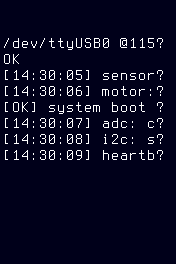
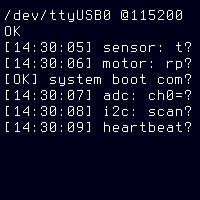
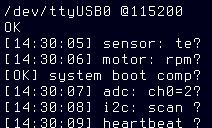
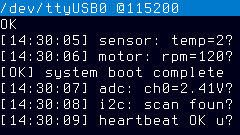
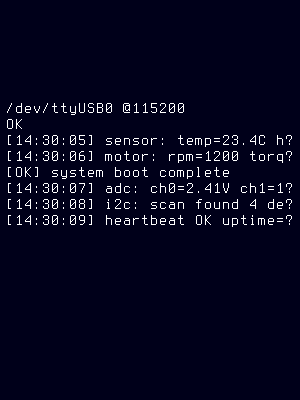
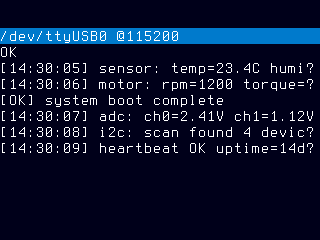
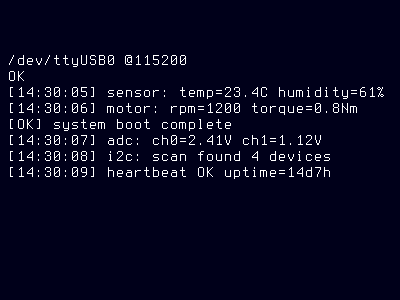
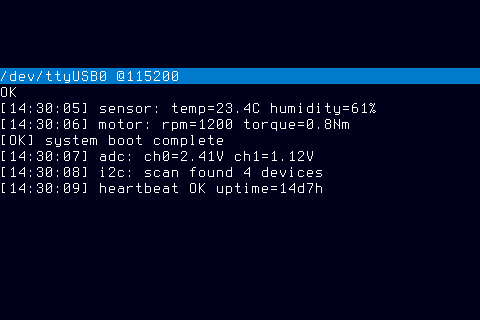
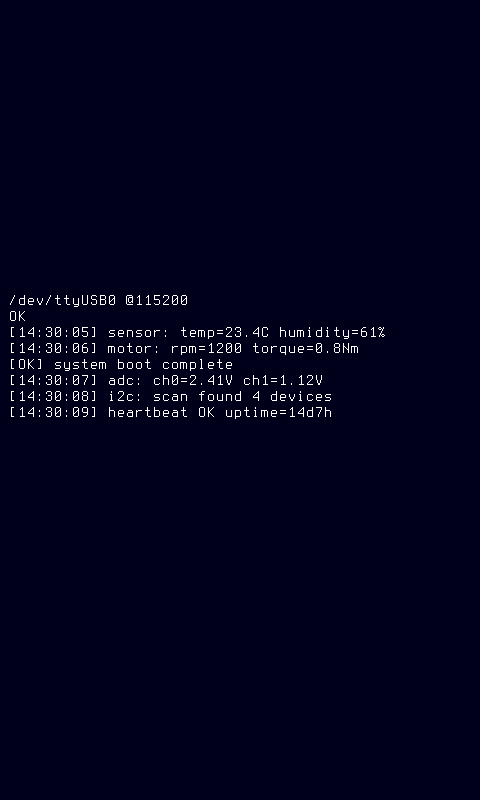
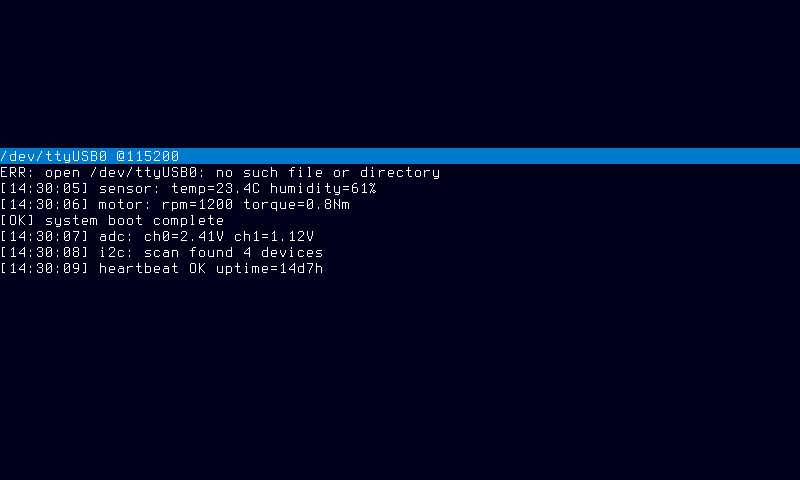
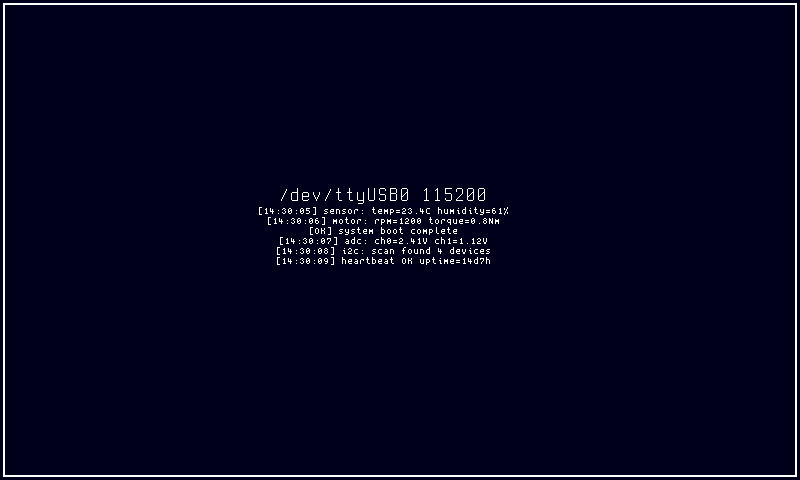
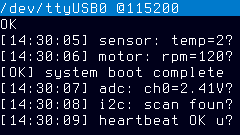
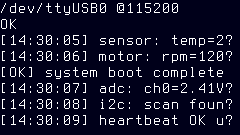
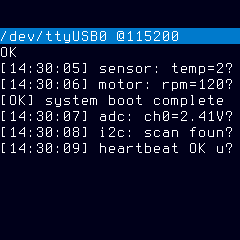
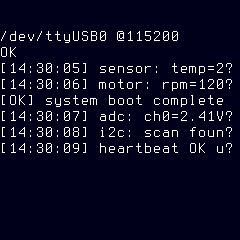
Live serial communication monitor. Displays incoming serial data as scrolling text lines with ANSI color support, throughput visualization, and error guidance. Connects automatically to USB serial devices and provides five visual styles ranging from minimal raw output to full dashboard views with sparklines and progress indicators.
Quick Start
Plug in a USB serial device — the mode auto-detects it and starts displaying output immediately. No port configuration needed.
To target a specific device at a custom baud rate:
How It Works
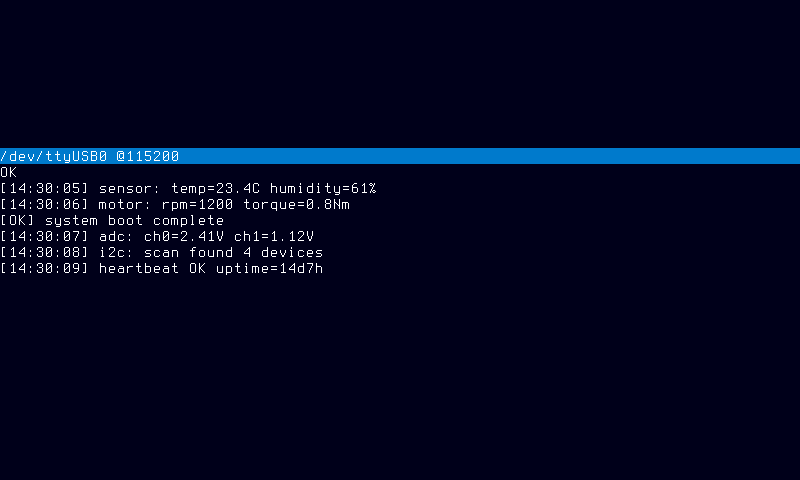
Serial mode reads data from a serial port and renders it as scrolling text lines on the display panel. A background goroutine manages the port connection lifecycle: scanning, connecting, reading, and recovering from errors.
When autoselect is enabled (the default), the mode periodically scans available serial ports at the interval defined by scan_ms and automatically connects to the first device found. This makes setup hands-free — plug in a device and the monitor picks it up without manual configuration.
Once connected, incoming data is read from the serial port continuously:
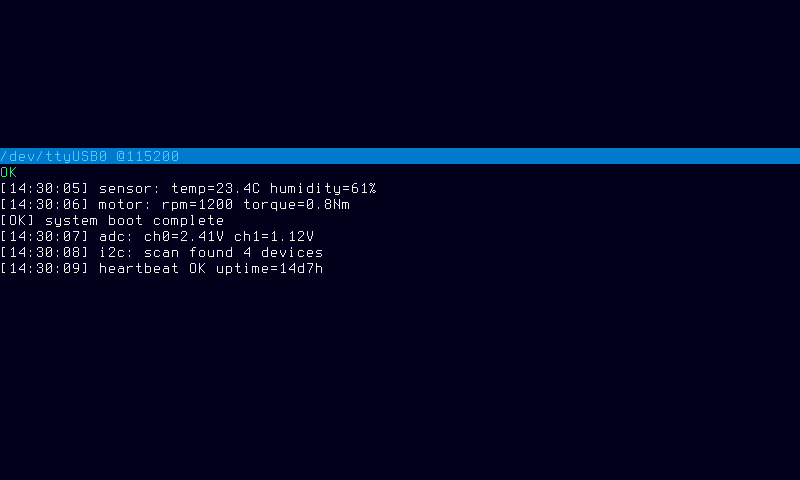
- ANSI color codes (SGR sequences, codes 30–37 and 90–97) in the serial output are interpreted and rendered with corresponding foreground colors on the display. Unrecognized codes are silently ignored. Reset codes (ESC[0m) revert to the default foreground.
- Line buffer — the mode maintains the last N lines of output (configurable via the
linesoption). Older lines scroll off the top as new data arrives. - Throughput tracking — a sliding window of 32 one-second samples records bytes received per second, used by the dashboard style for sparkline visualization.
- Auto-scroll — by default the display follows new output, always showing the most recent lines.
- Error categorization — when connection issues occur, the mode classifies the failure and displays actionable guidance text on the panel.
Tip
If the device disconnects and autoselect is enabled, the mode resumes scanning and reconnects automatically when a new device appears. Throughput history resets on disconnect.
Styles
The style option controls the visual layout and information density:
default
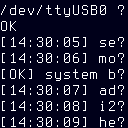
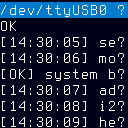
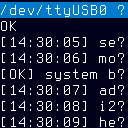
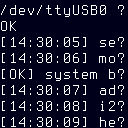
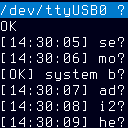
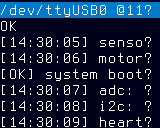
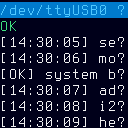
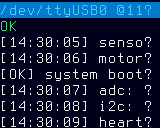
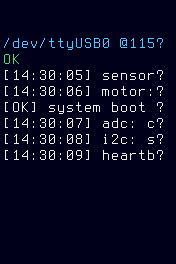
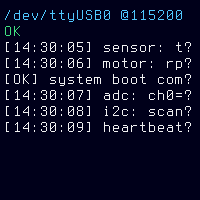
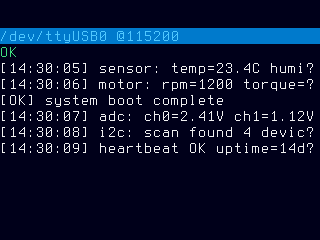
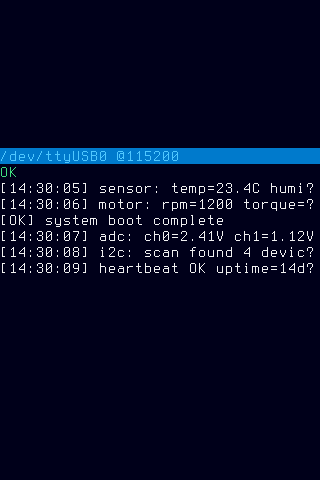
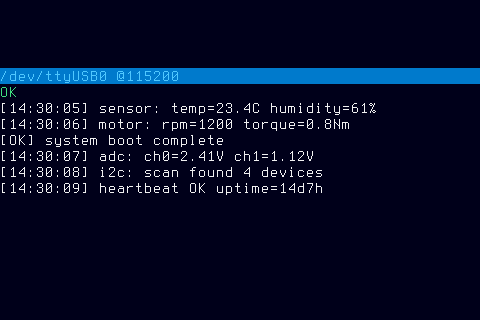
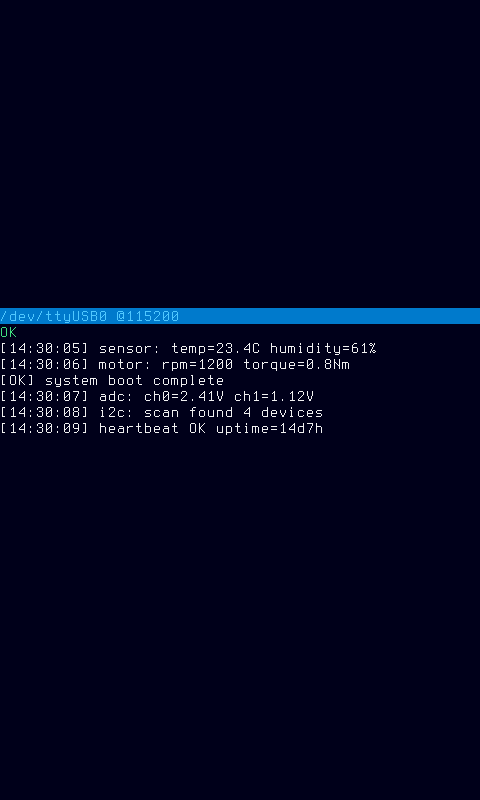
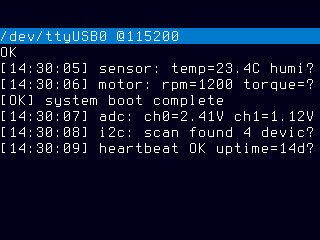
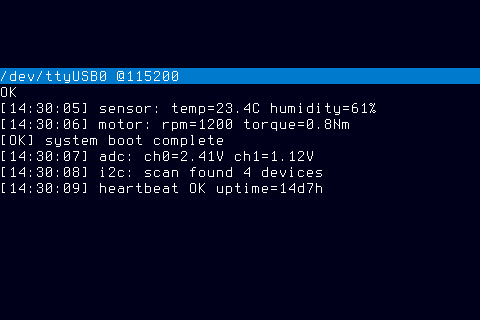
A header row showing port path, baud rate, and connection state with an LED indicator (green = connected, red = disconnected), followed by scrollable serial output lines rendered as textlabel widgets. Best for general monitoring where you want connection status visible at all times.
Widgets: LED, textlabel
raw
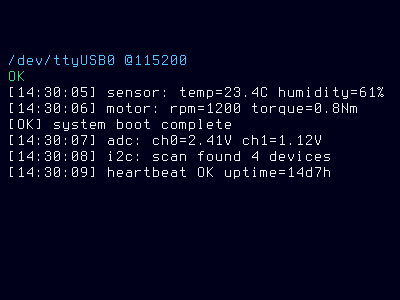
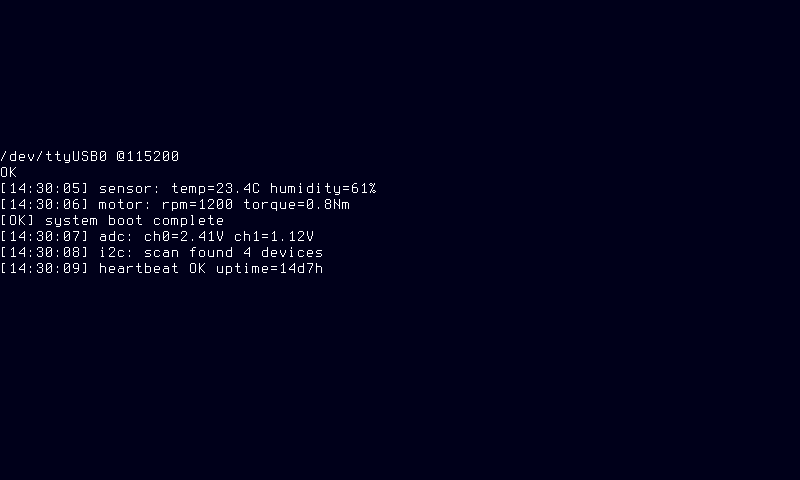
Only serial buffer lines — no header, no widgets, no status information. Every pixel of panel space is dedicated to serial data. Best for maximum data density when connection status isn't needed, or when you want minimal rendering overhead.
Widgets: None
dashboard
A non-scrolling composite view with connection LED, port/baud text label, a sparkline graph showing bytes-per-second throughput over the last 32 seconds, a progress bar showing buffer fill percentage, and serial output lines with a scrollbar. Best for monitoring throughput and buffer fill at a glance — useful during long-running data captures.
Widgets: LED, textlabel, sparkline, progressbar, scrollbar
compact
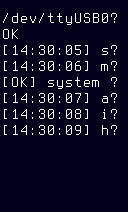
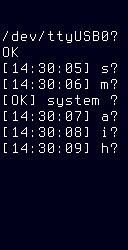
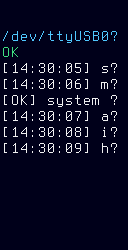
A single-row status bar (LED + port + baud) followed by serial output rendered in the smallest available font to maximize visible line count within the available pixel height. Best for small panels where you need to see as many lines as possible while retaining minimal status information.
Widgets: LED, textlabel
framed
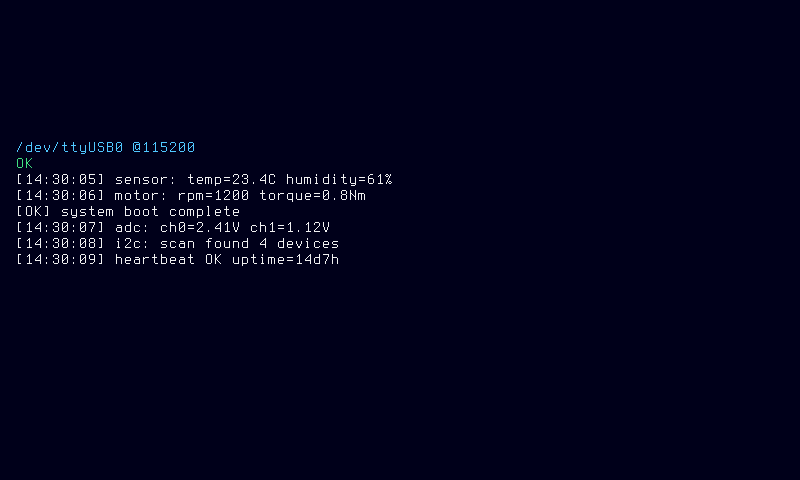
Serial output lines inside a decorative 8-pixel tile border with a scrollbar on the right edge. Content is inset by 8 pixels on each edge to avoid overlap with border tiles. Best for presentations or kiosk displays where visual aesthetics matter.
Widgets: borderframe, textlabel, scrollbar
Options
| Key | Type | Description | Default | Allowed Values |
|---|---|---|---|---|
| port | string | Serial port device path (empty enables auto-select) | (empty) | any valid device path, or empty for auto-select |
| baud | int | Baud rate for serial communication | 115200 | any integer >= 1 |
| lines | int | Number of lines to keep in the scroll buffer | 24 | any integer >= 1 |
| autoselect | bool | Automatically select first available serial port | true | true, false |
| scan_ms | int | Interval in ms between port scans when autoselect is enabled | 500 | any integer >= 1 |
| style | string | Visual style for serial output | default | default, raw, dashboard, compact, framed |
| font | string | Font for rendering serial text | auto | auto, or any registered font ID |
Configure options via the CLI:
Note
Setting port to a non-empty path connects only to that device. Set port= (empty value) to re-enable auto-select behavior.
CLI Examples
Query all current settings (zero arguments returns the full policy state):
Set the baud rate to 9600:
Use a specific serial port:
Switch to the raw style for maximum data density:
Switch to the dashboard style for throughput monitoring:
Switch to the compact style on a small panel:
Switch to the framed style for a presentation display:
Switch back to the default style:
Increase the scroll buffer to 48 lines:
Adjust the port scan interval to 1 second:
Combine multiple options in a single command:
Re-enable auto-select with a custom scan interval:
Font Selection
The font option controls which bitmap font is used for text rendering:
- auto (default) — the mode picks the largest font that fits the panel height while maintaining at least 4 visible rows of serial output. This adapts automatically to different panel resolutions and updates on each render cycle, responding to panel resize without requiring a mode restart.
- Specific font ID — any registered font identifier (e.g.,
ascii-4x6,ascii-5x7). If the specified font ID is not recognized in the font registry, the mode silently falls back to automatic selection.
Font selection is recalculated on every BuildView call using the current panel dimensions. When TextHints.PixelHeight or TextHints.RowHeight is 0 (uninitialized panel), the mode uses the default ASCII 4×6 font without adaptive selection.
The compact style overrides font selection to always use the smallest registered font, maximizing visible line count regardless of the font policy value.
Error Handling
When a serial port error occurs, the mode classifies it into one of five categories and displays actionable guidance on the panel:
| Category | Trigger | Guidance |
|---|---|---|
| PermissionDenied | System reports "permission denied" when opening the port | "Add your user to the dialout group: sudo usermod -aG dialout $USER" |
| DeviceNotFound | System reports "no such file" or "device not found" | "Check cable connection and device path" |
| Disconnected | System reports "input/output error" or "device disconnected" during read | "Cable disconnected. Reconnecting..." |
| BaudMismatch | System reports "framing error" indicating speed mismatch | "Verify baud rate matches the connected device" |
| Unknown | Any other error not matching the above patterns | "Unexpected error: \<message>" |
When autoselect is enabled and an error occurs, the mode resumes port scanning at the configured scan_ms interval after classifying the error. The error category and guidance text remain visible on the panel until a new connection is established.
Permissions
Serial ports on Linux require membership in the dialout group. If you see a "permission denied" error:
-
Add your user to the dialout group:
-
Log out and log back in for the group change to take effect.
Note
Group membership changes are not applied to existing sessions. You must fully log out (or reboot) before the new group takes effect. Running newgrp dialout in a terminal applies it to that shell only.
On most Linux distributions, USB serial adapters (ttyUSB, ttyACM) are owned by the dialout group by default via udev rules. If your device uses a custom udev rule with a different group, adjust accordingly.
Layout Behavior
The serial mode optimizes rendering automatically:
- Adaptive fonts — the best available font for the panel dimensions is selected on each render cycle. Font choice responds to panel configuration changes without requiring a mode restart.
- Row limits — if the line buffer exceeds the panel's visible row capacity, only the most recent visible lines are rendered. The scrollbar indicates position within the full buffer.
- Scrollbar visibility — a scrollbar widget appears only when the buffer contains more lines than can be displayed and the view is not already scrolled to the tail (most recent) position.
- Graceful degradation — if widget rendering fails (panel too small for LED diameter, sparkline bounds, or border frame minimum 16×16 pixels), the mode omits the affected widget and continues rendering remaining content.
- Style switching — changing the style via policy update takes effect on the next render cycle without requiring a mode restart or reconnection.
Panel Compatibility
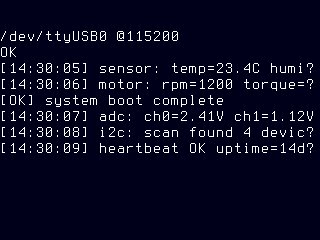
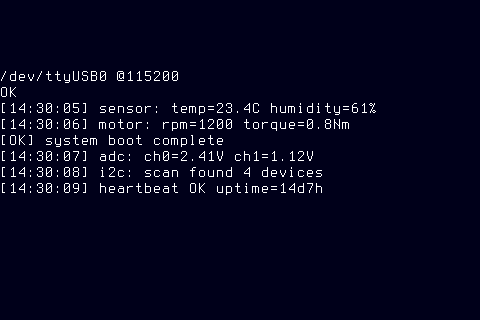
Works on all panels. The serial mode adapts its rendering to the connected display — on monochrome panels, text renders in the native foreground color without syntax highlighting. On slow-refresh panels, auto-scroll produces static frames that update only when new serial data arrives, avoiding unnecessary redraws. Interactive scrolling requires input controls.
| Capability | Description | Behavior |
|---|---|---|
| MonoFast | Fast-refresh monochrome OLED (128×32, 128×64, 128×128) | Fully supported — white text on black, smooth auto-scroll animation |
| MonoSlow | Slow-refresh monochrome e-ink (122×250, 176×264, 200×200, 296×128, 400×300, 480×800, 800×480) | Fully supported — static text frame, updates only on new serial data arrival |
| GrayscaleFast | Fast-refresh grayscale (160×80, 240×135, 240×240, 320×240, 480×320, 800×480) | Fully supported — grayscale text rendering with smooth scroll animation |
| GrayscaleSlow | Slow-refresh grayscale e-ink (122×250, 176×264, 200×200, 400×300, 800×480) | Fully supported — static grayscale text, updates on new data arrival |
| ColorFast | Fast-refresh color TFT (128×128, 160×80, 240×135, 240×240, 320×240, 480×320, 800×480) | Fully supported — full color text with style-dependent accents, smooth scrolling |
| ColorSlow | Slow-refresh color e-ink (122×250, 176×264, 200×200, 400×300, 800×480) | Fully supported — static color text frame, updates on new data arrival |
| Input | Action |
|---|---|
| K1 | Switch to dashboard style |
| K2 / Up | Scroll up through buffer |
| K3 / Down | Scroll down through buffer |
| JOY / Primary | Clear scroll buffer |
The mode functions in read-only auto-scroll on panels without input controls — serial data streams continuously and the display always shows the most recent lines.
Tip
Scrolling pauses auto-scroll. New data continues to buffer in the background. Press JOY to clear the buffer and resume auto-scroll at the latest output.
The dashboard style sets Static=true (non-scrollable panel content) while all other styles are scrollable with Static=false.
Related Pages
- Display Modes — overview of all available modes
- Getting Started: CLI Usage — introduction to
cyberhudctlcommands - Configuration — persistent configuration options
- Getting Started: Hardware — identifying serial ports and connected devices
- Pager — file/pipe tailing mode with similar scrolling text display
- Ticker — scrolling ticker display from external data feeds
- USB — USB device monitoring for connected serial adapters
Snapshots
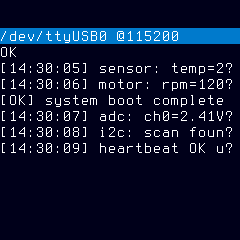
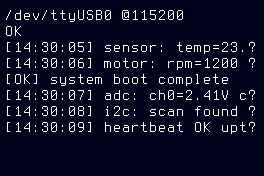
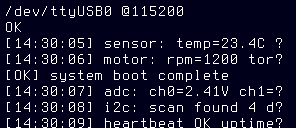
Color
Grayscale
Mono